
Start from your image
Upload a photo, illustration, product visual, or other supported still image as the starting frame.
Image-to-video AI turns a still photo, illustration, or artwork into a moving clip. Upload your image, describe the subject and camera motion, and choose a compatible video model.
Keep the composition and visual direction of your source image while using a prompt and model controls to guide motion.
Upload a photo, illustration, product visual, or other supported still image as the starting frame.
Describe subject movement, environmental motion, camera behavior, pacing, and mood in plain language.
Review the available controls and credit estimate for models that support image-to-video generation.
Animate a still image in three focused steps without rebuilding the scene from scratch.
Choose a clear source image with the subject, composition, and visual style you want the video to preserve.
Explain how the subject, background, and camera should move, then choose a compatible model and settings.
Check the estimated credit cost, generate the video, and refine the prompt or continue with another compatible workflow.
Choose from compatible image-to-video models. Input roles, duration, motion controls, quality settings, and credit costs vary by model.
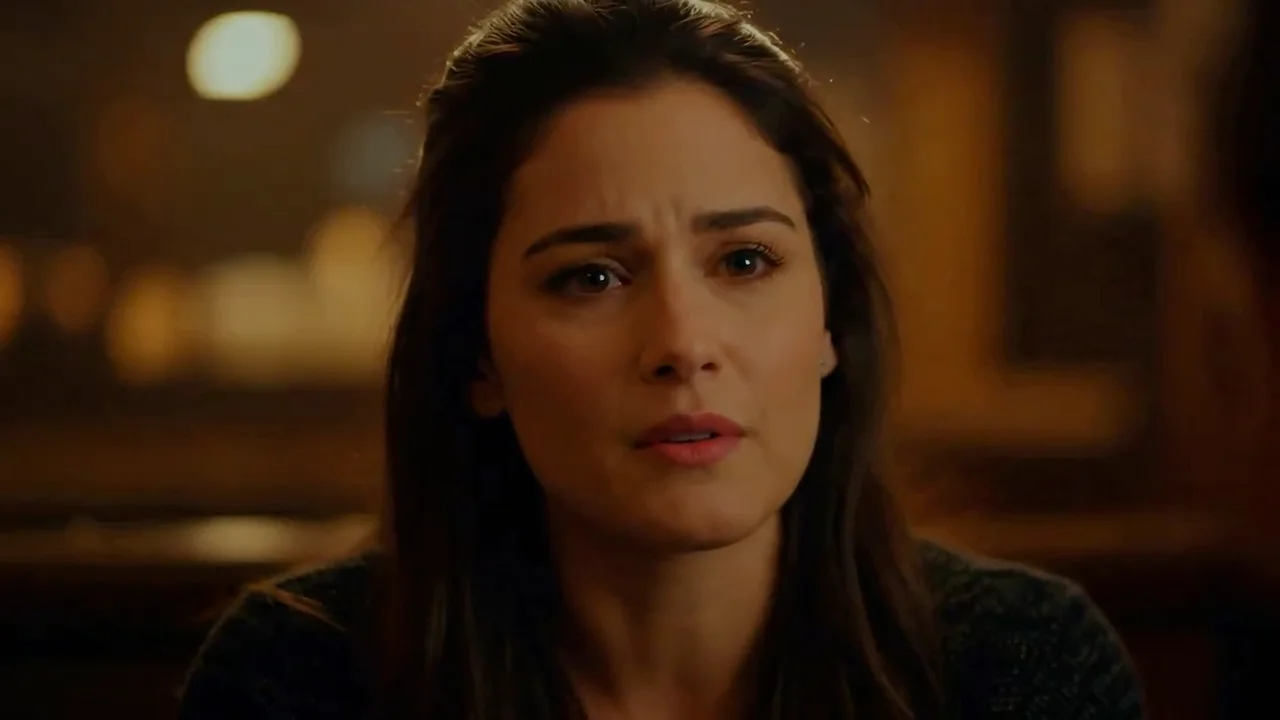
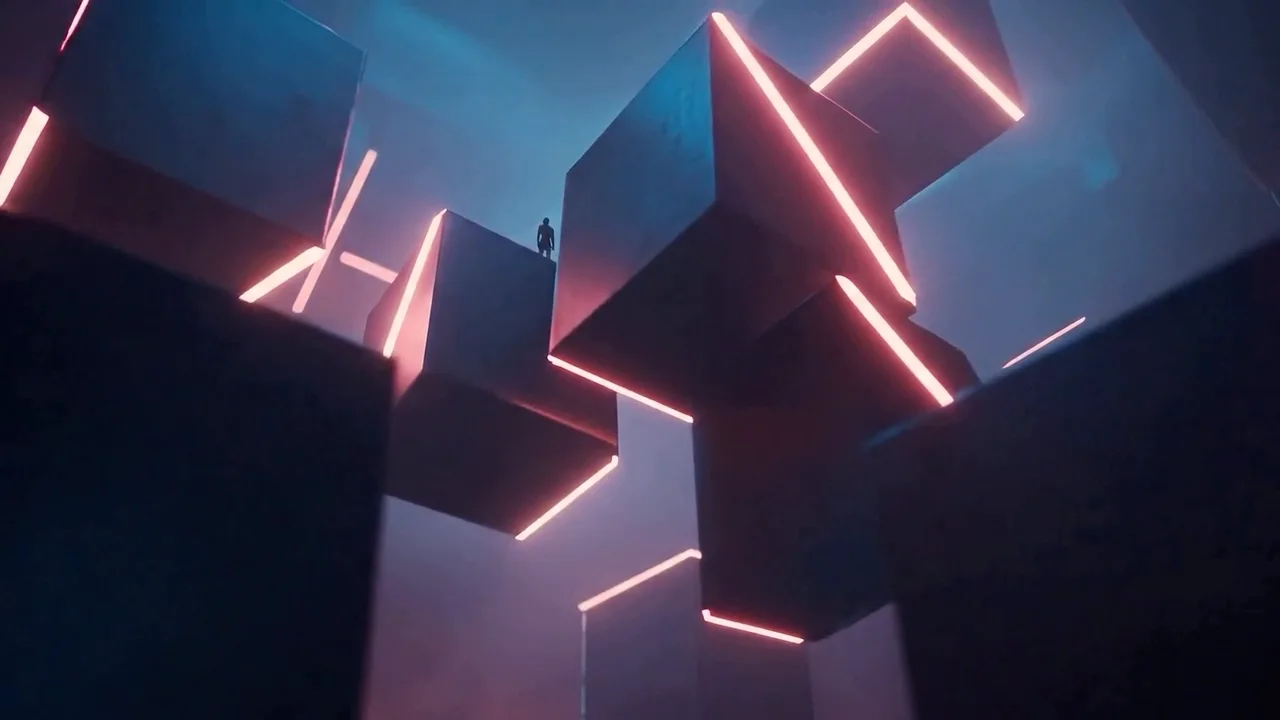
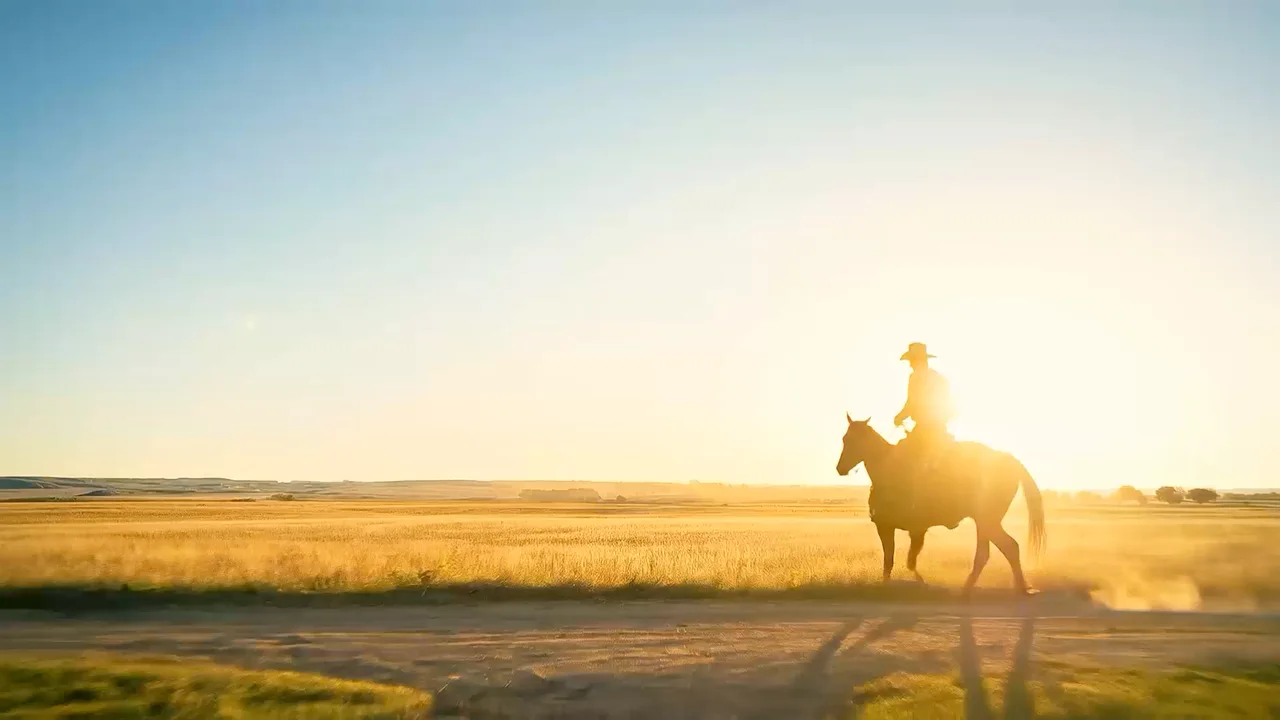
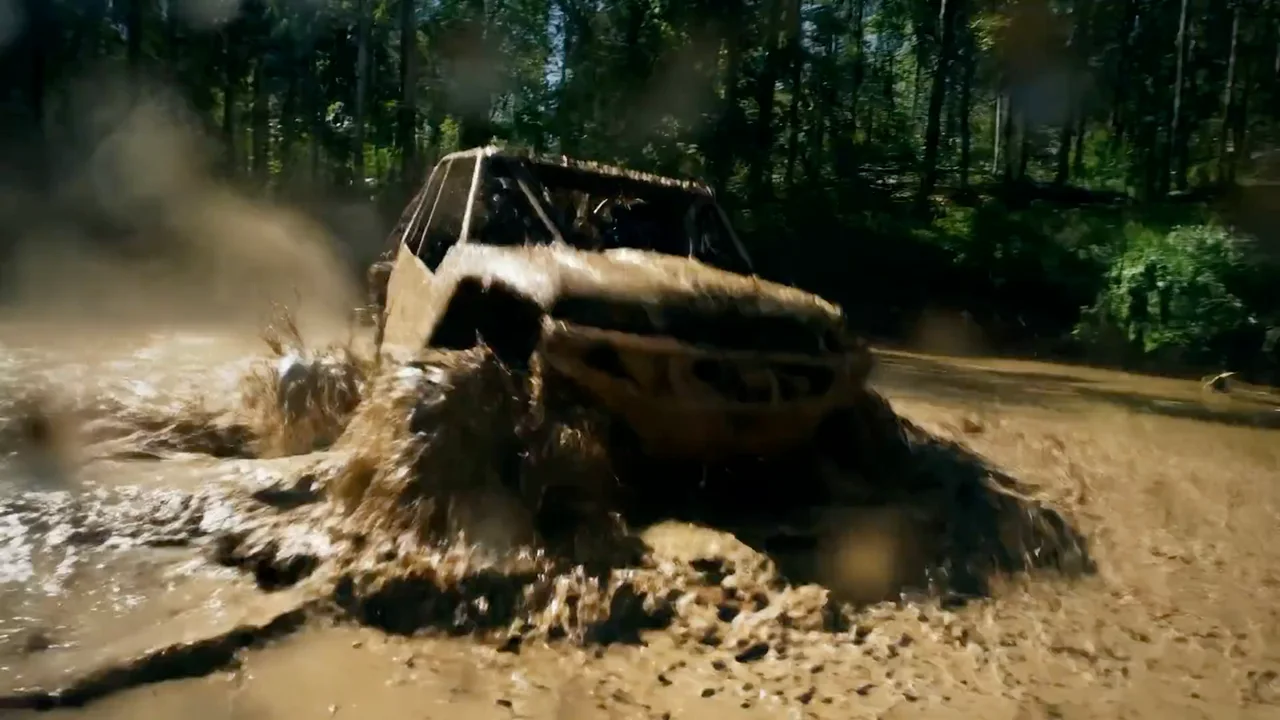
Image-to-video is for animating a still photo, illustration, or product visual while preserving its composition—ideal when a strong frame should drive the look of the clip.
Upload your source image, describe subject and camera motion, and pick a compatible model. The workspace shows input requirements, duration options, and credit estimates before you render.
You can also explore text-to-video and multi-reference video workflows when you want broader scene generation beyond a single still frame.
Add subtle movement to people, fashion, or lifestyle shots for reels and ads.
Rotate, parallax, or environmental motion around catalog stills.
Bring posters, covers, and stylized artwork into gentle motion.
Use a generated still as the first frame, then refine motion in another compatible video step.
Browse image and video modes, models, tools, and effects in one place.
Direct answers about source images, motion prompts, model choice, and credits.
Upload a still image, describe the motion and camera, compare compatible models, and review the credit estimate before generating.