Product photo guide: backgrounds, colors and image sets
Use only the steps your photo needs. From a chosen result, use Next tool to carry that image into the next step, then review the new output against your original.
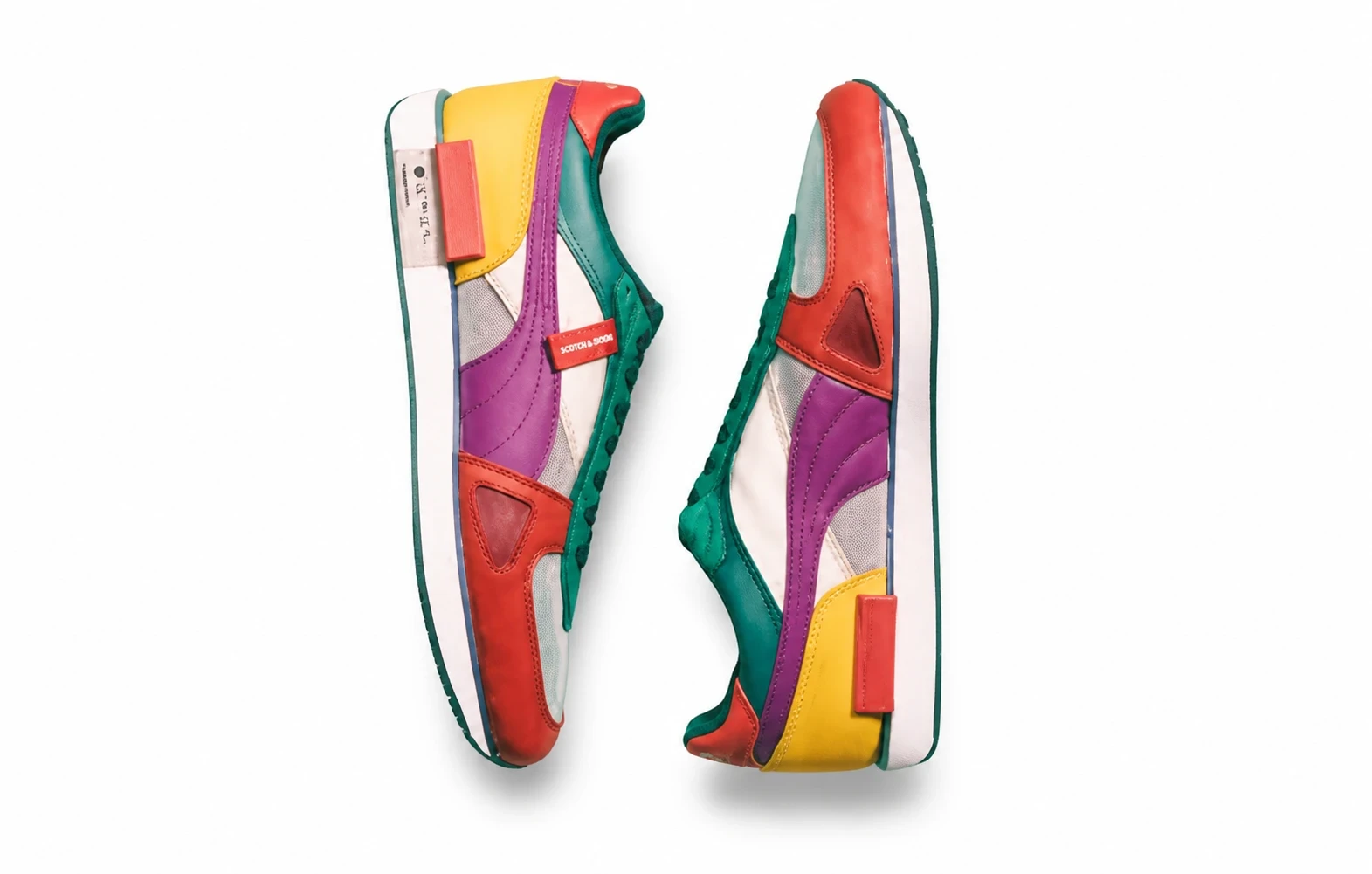
Start with a clear product photo. Clean it, choose a packshot or scene, explore apparel and color variants, then review and download the images you need for your store or campaign.
Packshots and clean source images
Make a standard product photo, remove a background, clean small blemishes, or add Soft, Hard or Floating shadows to a prepared cutout.
Backgrounds, placement and light
Choose between generating a setting, placing a product in a supplied scene, adjusting light and exploring an automatic creative composition.
Apparel and color variations
Prepare garment presentations or explore colors. New views and reconstructed garment interiors still need comparison with real product references.
How do I generate a product image set?
Open Product Photography and choose Product image set. Select only the full images you need: packshot, scene, shadow, creative or flat lay. Each is generated separately from the source photo and billed individually; there is no paid collage preview. Shadow requires a shadow-free transparent source and can use Soft, Hard or Floating styles. The outputs are style variations, not verified photographs of unseen angles.
Are color variants accurate enough to list as stock?
The multi-color operation previews up to six target colors on a described region of one product photo. It does not verify stock, material, color accuracy or a SKU match. Compare every result with a real sample before using it in a listing.
How do I send a result to the next tool?
Use Next tool on a chosen result to import that image into retouch, background removal, shadow, packshot, scene, color, apparel, Product image set or upscaling. Generation starts only when you submit in the destination. Solution links open the tool without importing a result.
Check before you publish
Use AI results as editable product visuals. Keep the original beside them and choose only images that describe the actual item accurately.
Product details
Compare logos, printed text, small components, edges and surface texture. Prompt instructions to preserve them are not a guarantee.
Color and material
Check color previews and relit materials against real stock. A chosen HEX color is not a calibrated product-color measurement.
Consistency across the set
Match framing, crop, background and apparent scale across images. Reusing a preset or reference does not lock the same generated scene for every SKU.
Channel and file requirements
Check dimensions, sharpness, allowed backgrounds and any overlays. Download presets prepare files; they do not approve a listing or upload it to your store.
Related posts
 Guides
 Guides
 Guides