

- Soft shadow
- Shadow intensity · 30
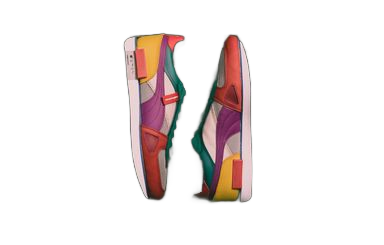
Add a shadow to a shadow-free product cutout.
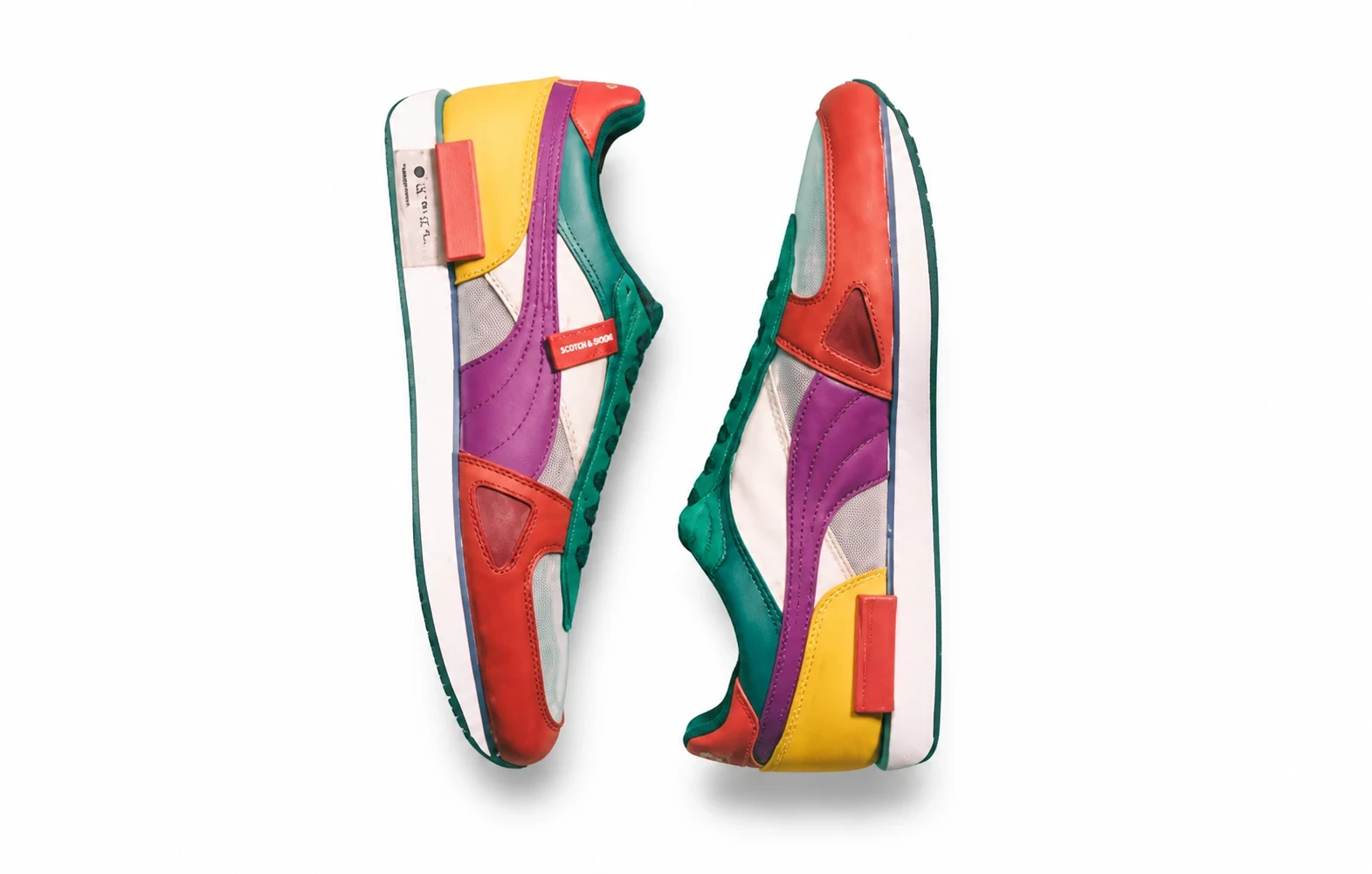
Before: a cutout with no shadow. After: the model adds a shadow. Drag the divider to compare.
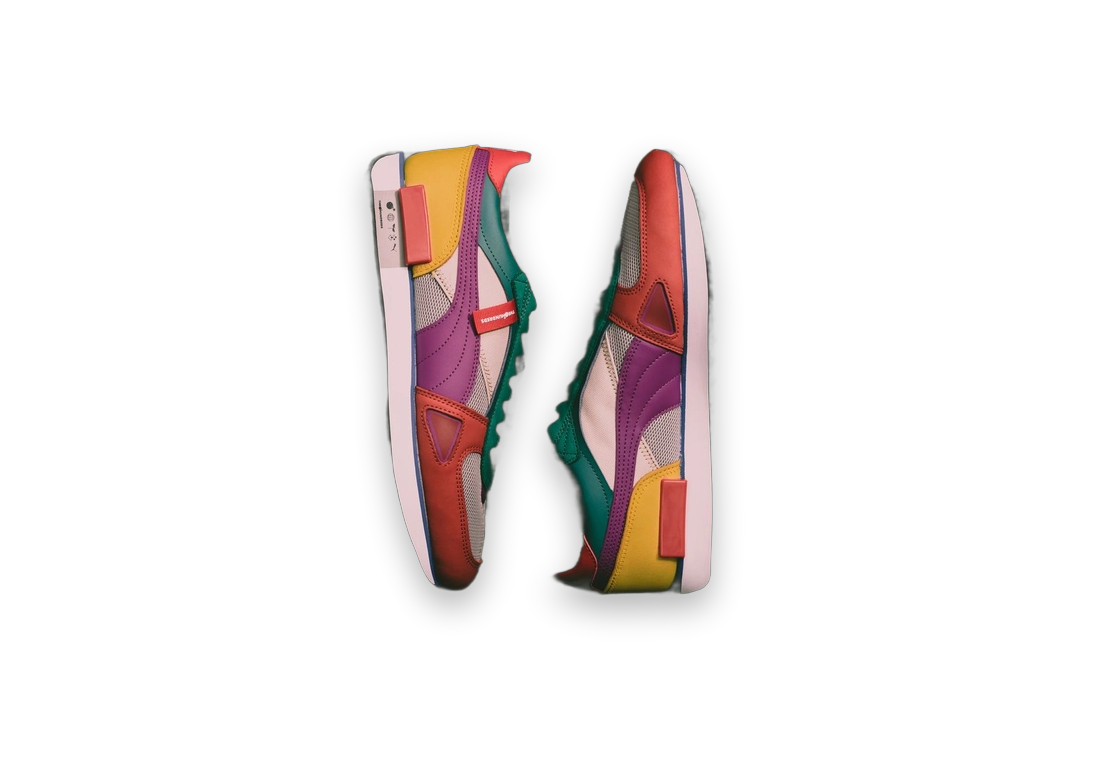
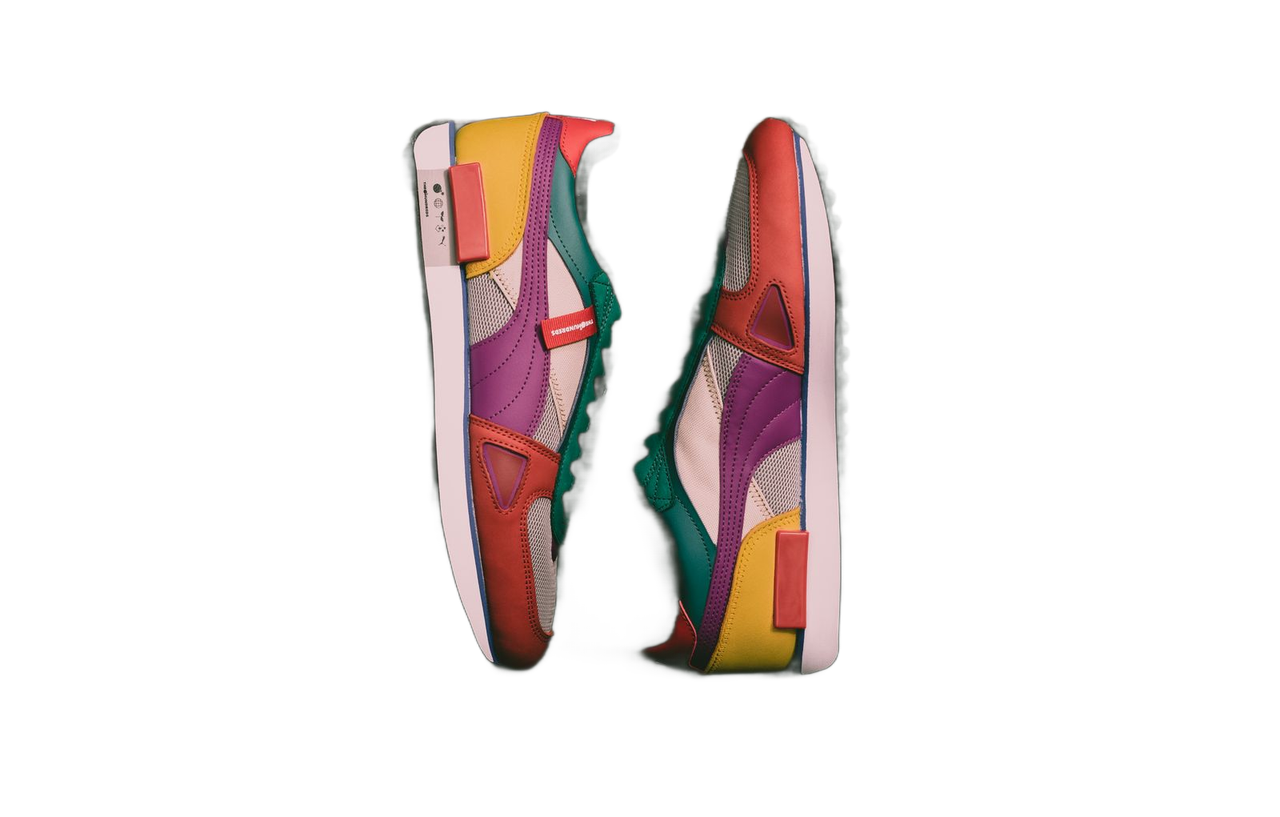
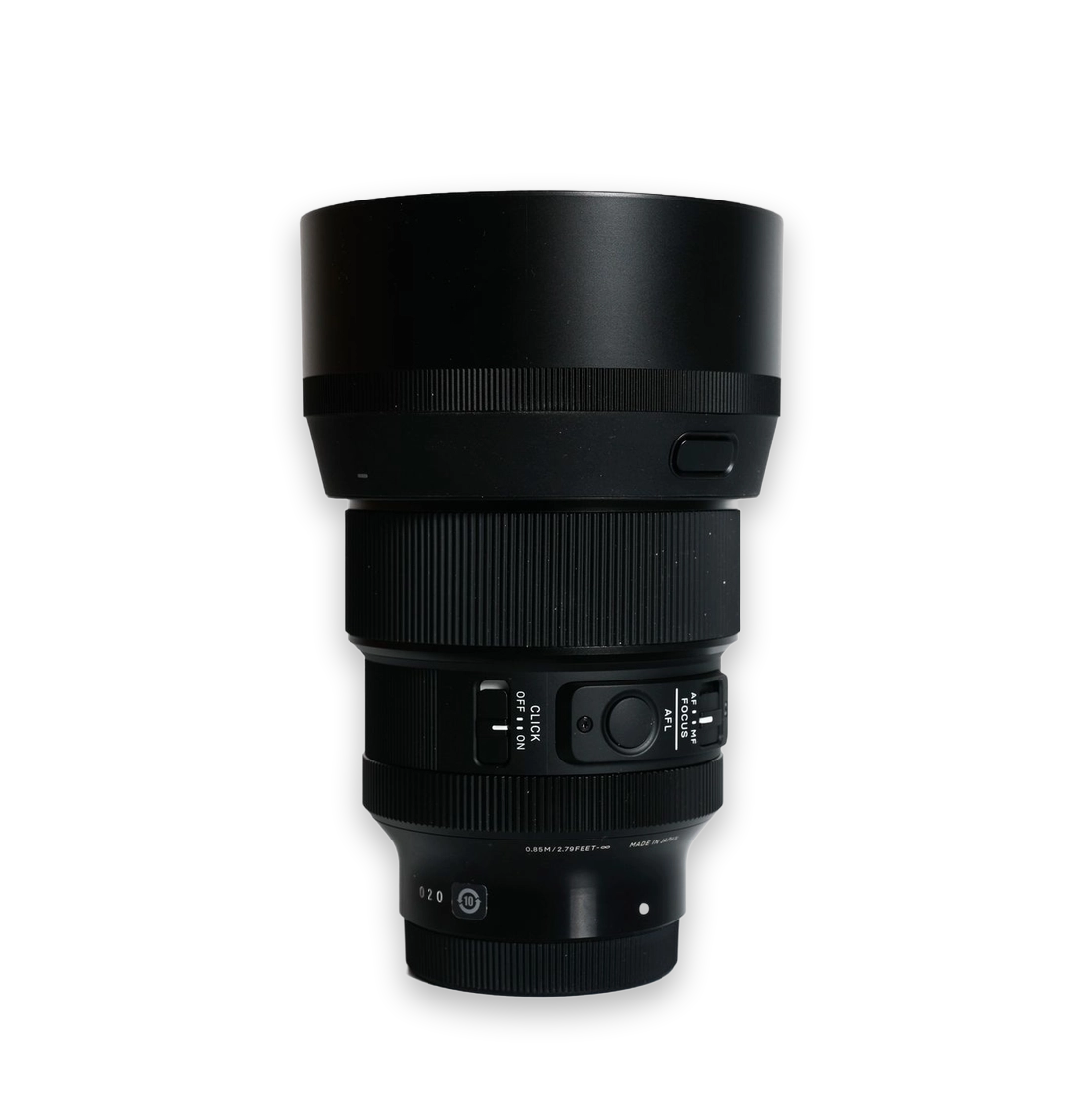
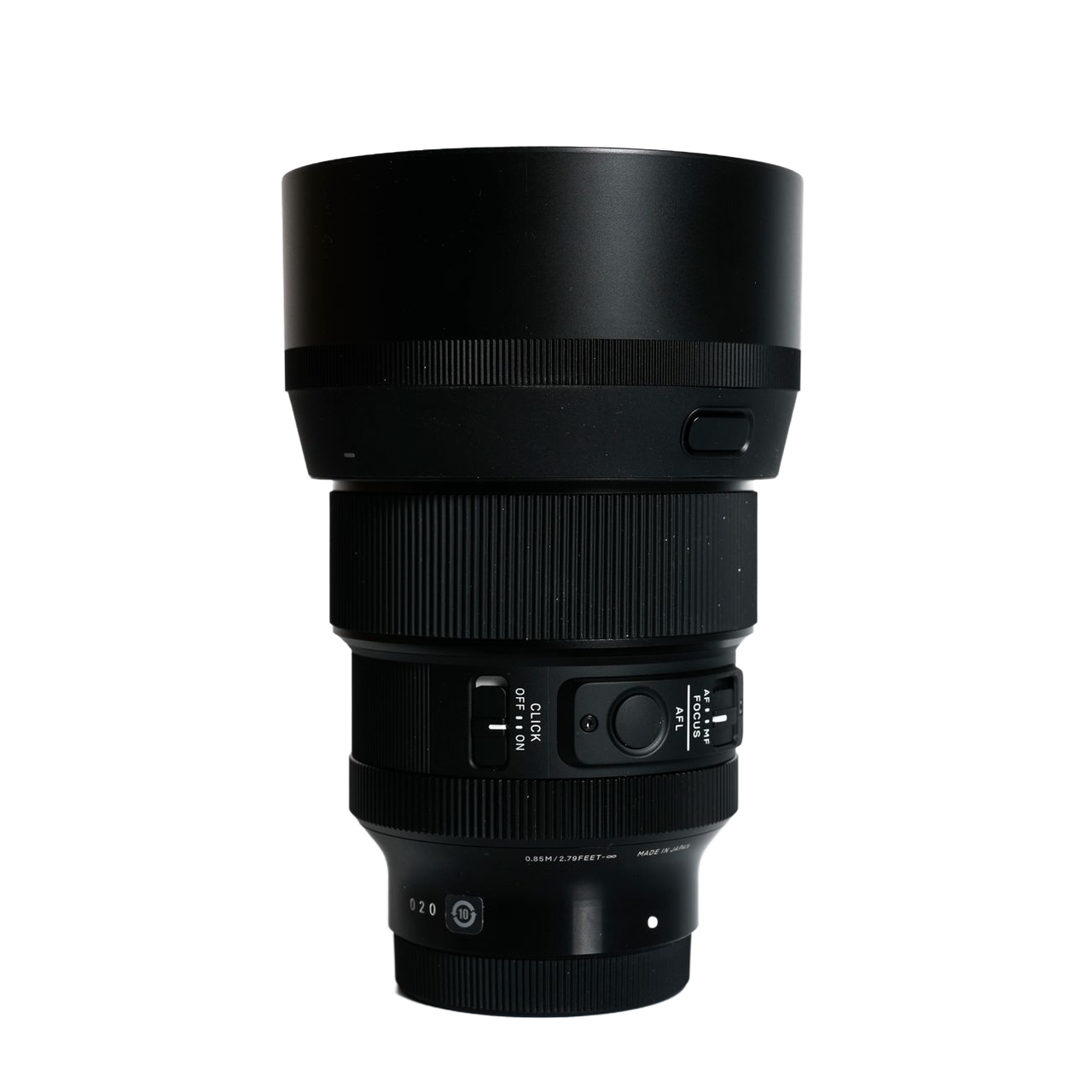
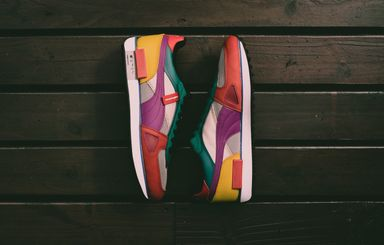
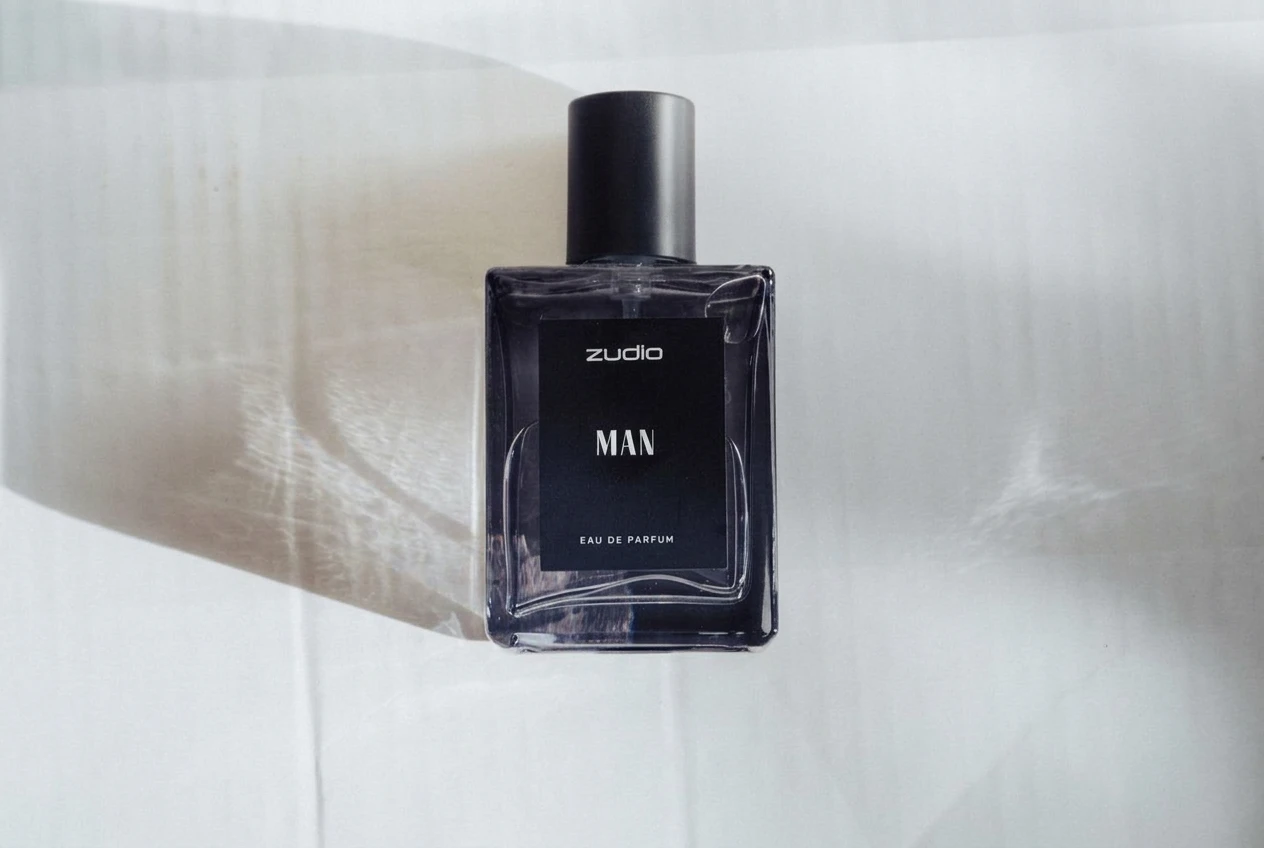
Soft shadows suit graphic layouts; floating shadows suit floating displays. Neither recreates the lighting or contact of a real scene.
Choose a soft or floating shadow and set its intensity from 0 to 100.
Give isolated catalog products a sense of depth.
Use the returned PNG in your own storefront layout.
Compare shadow styles before choosing a presentation.
Start with a transparent cutout that has no shadow, leaving room around the product. Remove the background first if needed. Keep finished photos with natural shadows as they are.
Choose a soft or floating shadow and set its intensity from 0 to 100.
Compare with your original. Check the product shape, color and label text before using the result.
Explore other product photography tasks, remove an existing background or enlarge an image for your next design.