Career and LinkedIn headshots
Turn a clear personal photo into a studio-style headshot, or a plain ID-style crop, without booking a photographer.
From family prints to career headshots, choose the next step for your own portraits: restore detail, refine light, polish skin and teeth, or compare photographic styles before finishing.
For people who need a usable portrait from a photo they already have. Choose the edit you need, then check facial details against your original.
Turn a clear personal photo into a studio-style headshot, or a plain ID-style crop, without booking a photographer.
Fix light, background, skin, hair, or wardrobe on photos of yourself before you post or print.
Repair scratches, blur, and aging on family portraits, colorize a black-and-white print, then optionally continue into retouch or a new headshot.
Six before-and-after examples highlight restoration, scene changes, makeup polish, and a finished headshot. Open a tool to work on your own photo.
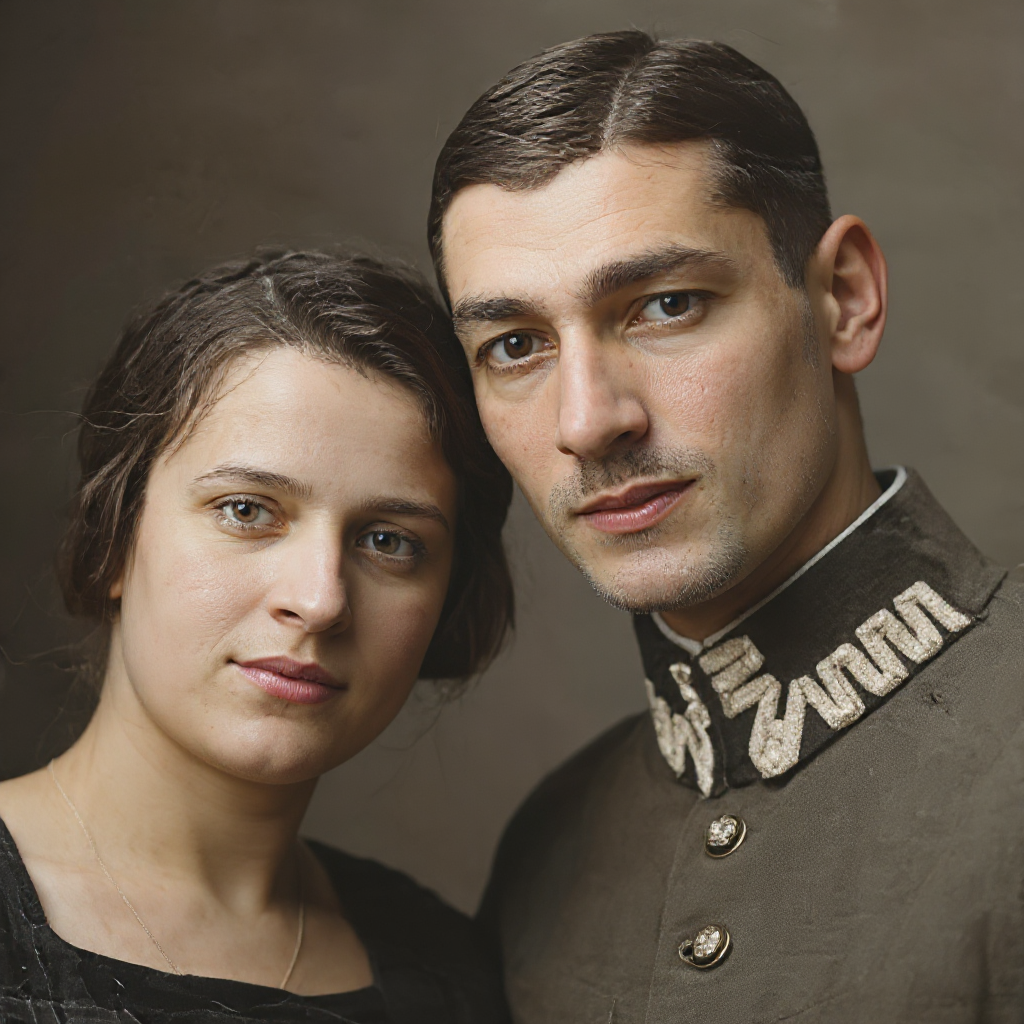
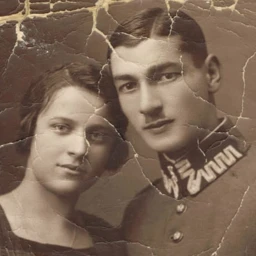
Restore old and damaged portraits
Scratched family print restored


Restore old and damaged portraits
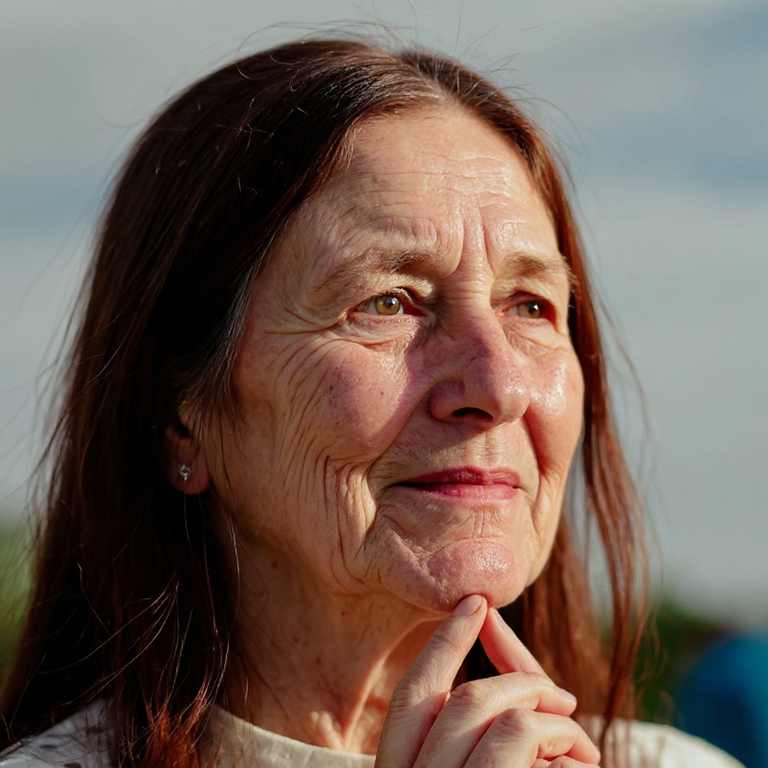
Blurry face detail recovered
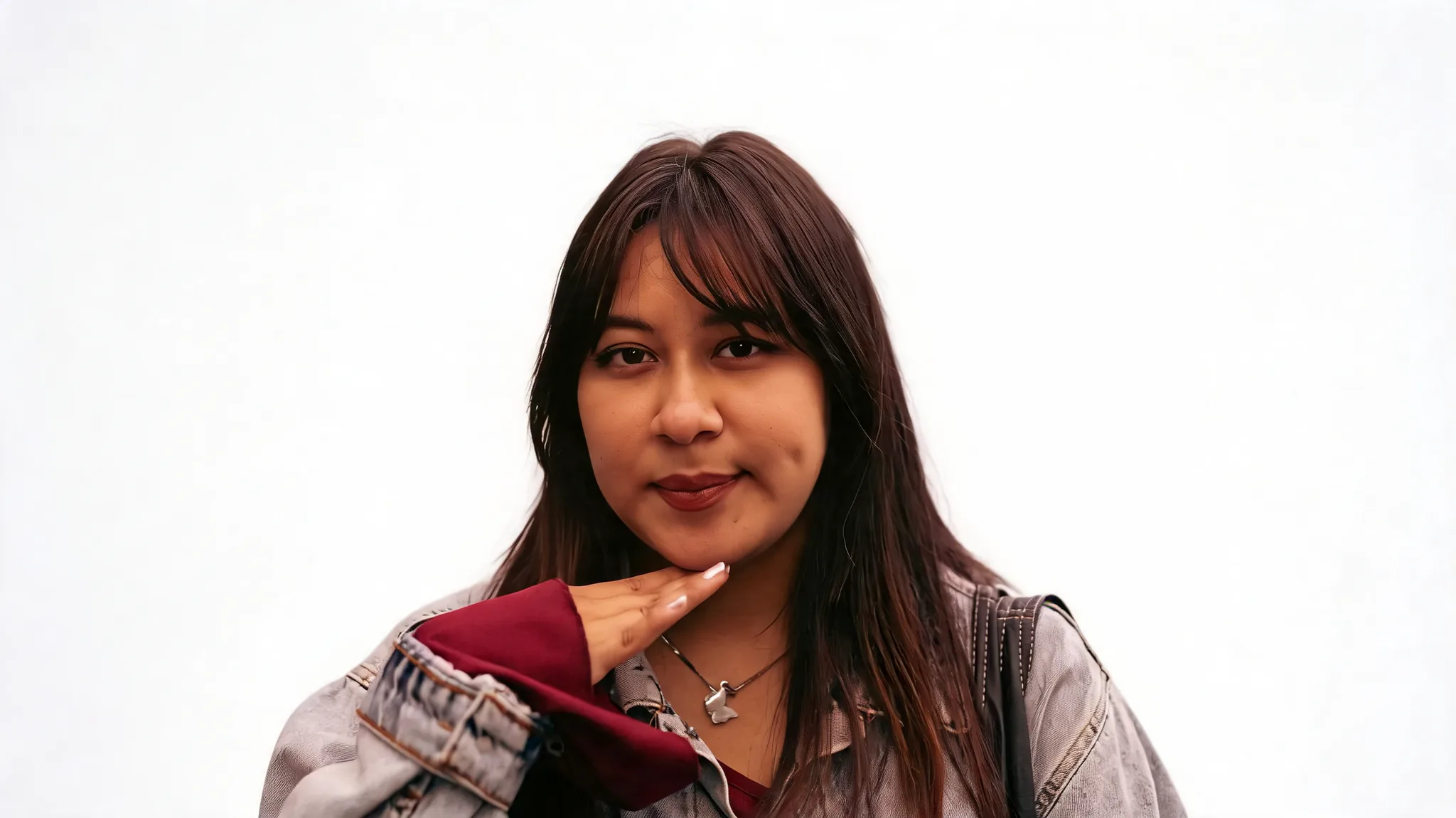

Background and light
Street backdrop swapped for a cleaner scene


Background and light
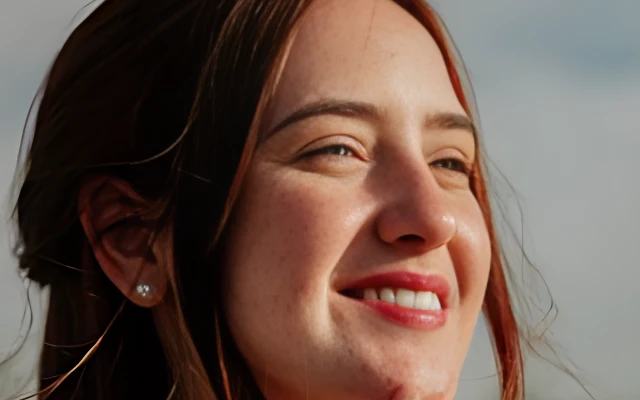
Harsh outdoor light softened
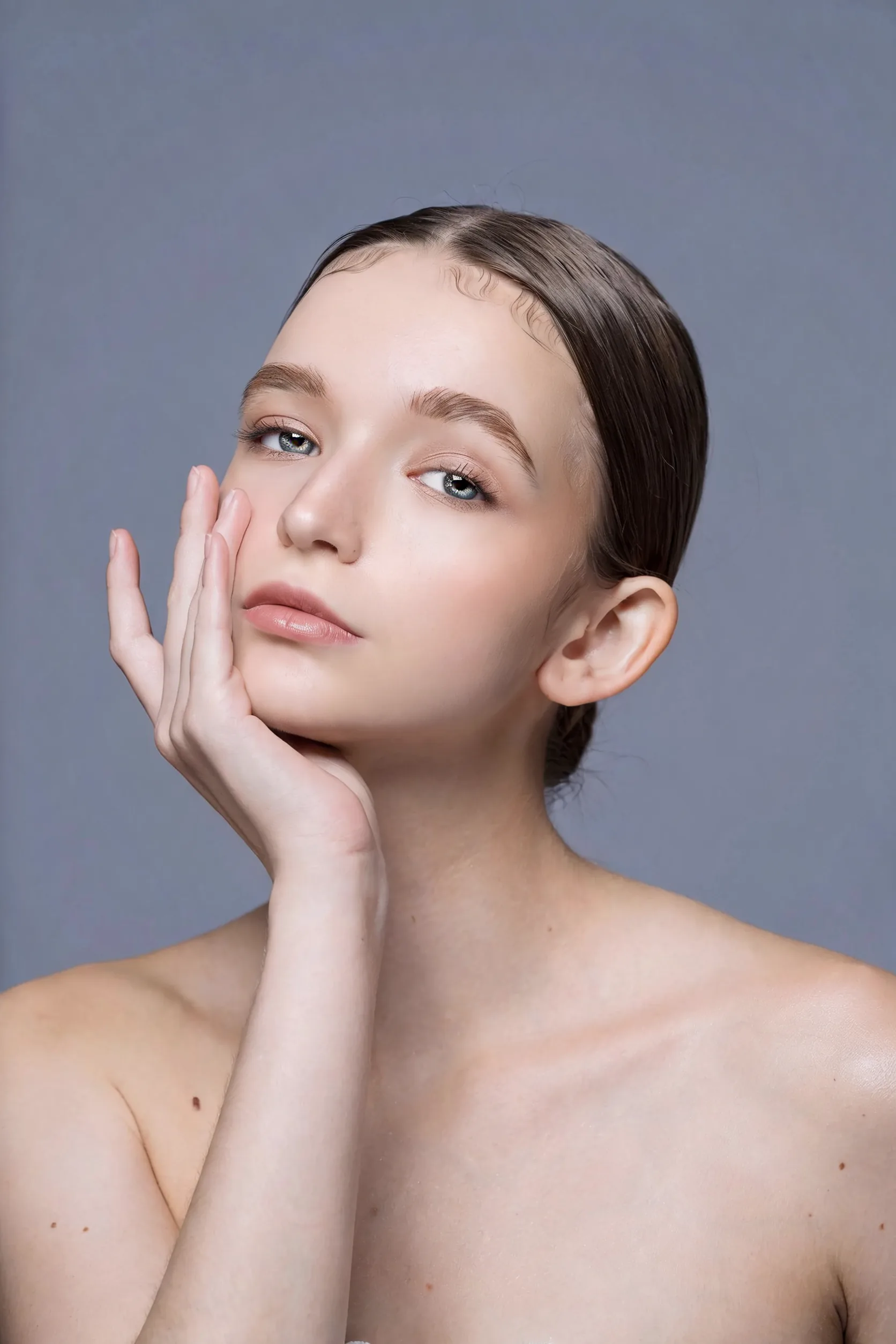
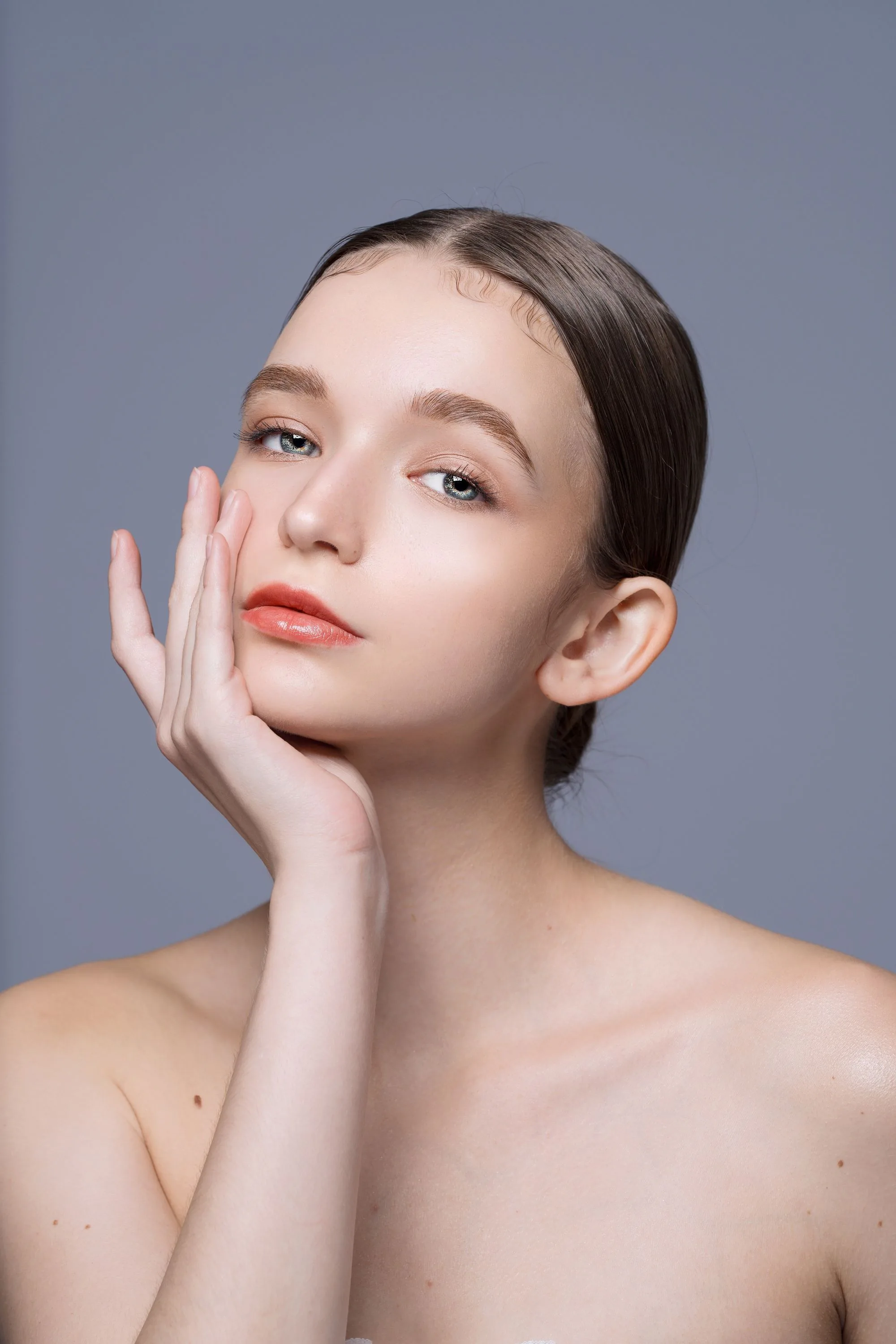
Retouch, makeup, teeth, and hair
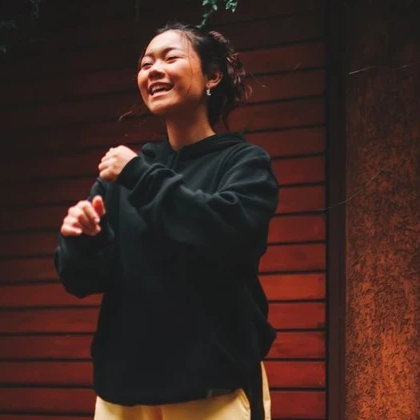
Everyday makeup polish


Headshots, style previews, and print
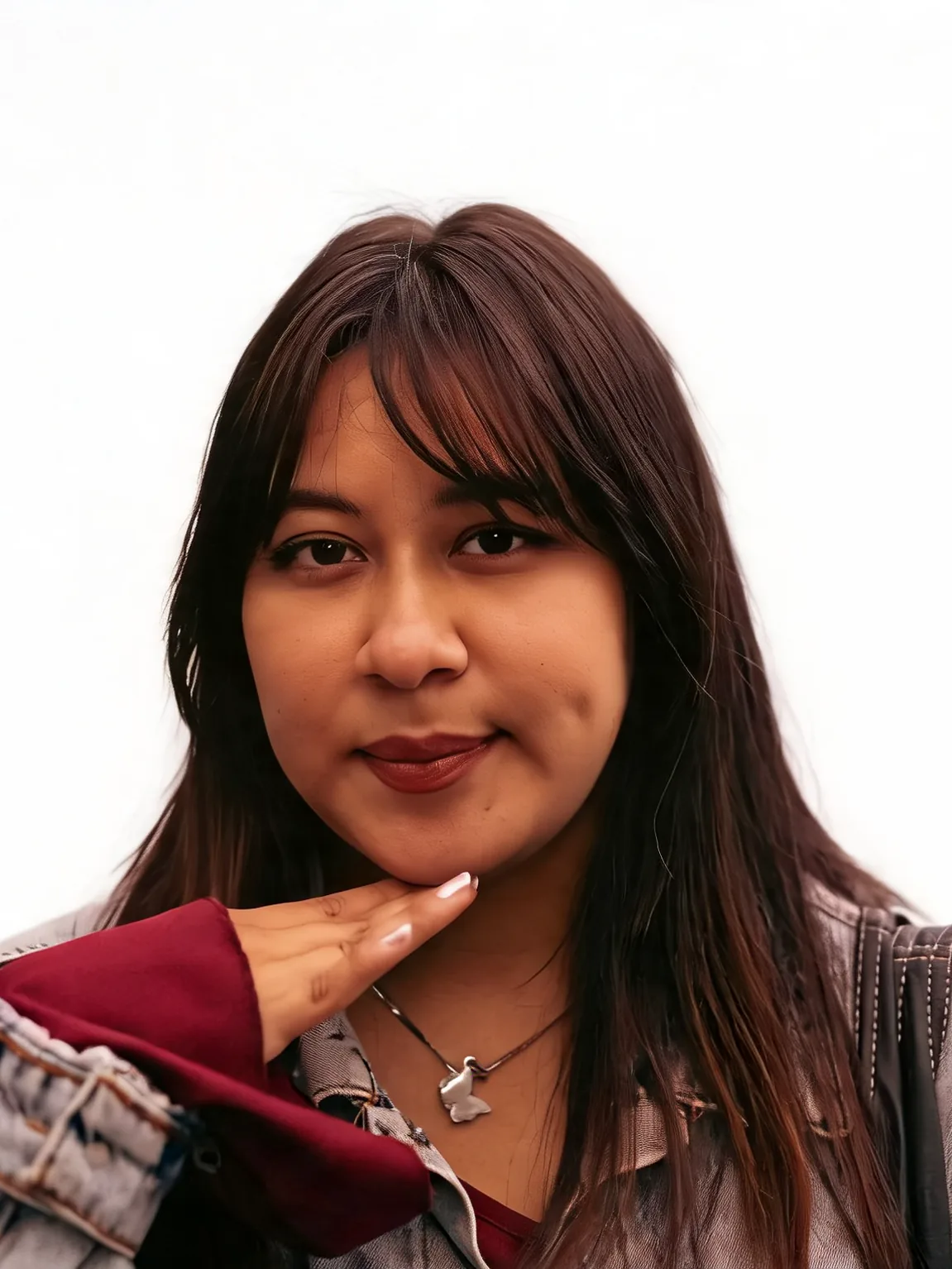
Career headshot on a white backdrop
The photos exist. The workflow to make them usable for work, family, or a profile usually does not.
Casual framing, busy rooms, and uneven skin keep a photo off LinkedIn even when the face is fine.
Harsh noon sun, mixed indoor bulbs, and cluttered rooms pull attention off the person.
Family portraits and compressed phone crops cannot be reshot. Restoration has to keep the same person.
It is unclear whether to restore first, change the backdrop, retouch, or jump to a headshot — so work restarts.
Choose from seventeen tools across four steps: repair the photo, set the scene, polish skin and teeth, then compare looks or finish a usable portrait. Use only the steps your photo needs.
Repair scratches on family prints, recover facial detail, then colorize a black-and-white or faded photo before you restyle anything.
Cut a subject free, replace a busy backdrop, relight a flat portrait, or brush out a photobomber so the person reads first.
Soften blemishes, add everyday makeup, gently whiten visible teeth, or preview a haircut. Review each edit against your original portrait.
Create a career headshot or ID-style crop, try an outfit, preview age, or upscale for print. Use AI Portrait Style Preview to compare photographic looks in one contact-sheet image.
Seventeen tools for everyday personal portraits, grouped by job. Each catalog tool appears once.
Repair family prints, recover facial detail, then colorize a black-and-white photo before you change light, makeup, or framing.
Cut the subject free, replace a busy backdrop, relight a flat portrait, or brush out a guest or photobomber.
Soften skin, add everyday makeup, gently brighten visible teeth, or preview a new haircut on your own portrait.
Finish a headshot or ID crop, try clothes, preview age, or upscale for print. Compare photographic looks together in a Portrait Style Preview contact sheet.
Prepare a career headshot, check ID photo requirements, or restore and gently polish a personal portrait.
 GuidesGuides
Choose the right portrait tool and the next step, from restoration and teeth whitening to style comparison and a finished headshot.
Turn a personal photo into a career headshot, or repair a family print first. Browse the rest of the Portrait photography toolkit when you need the next step.