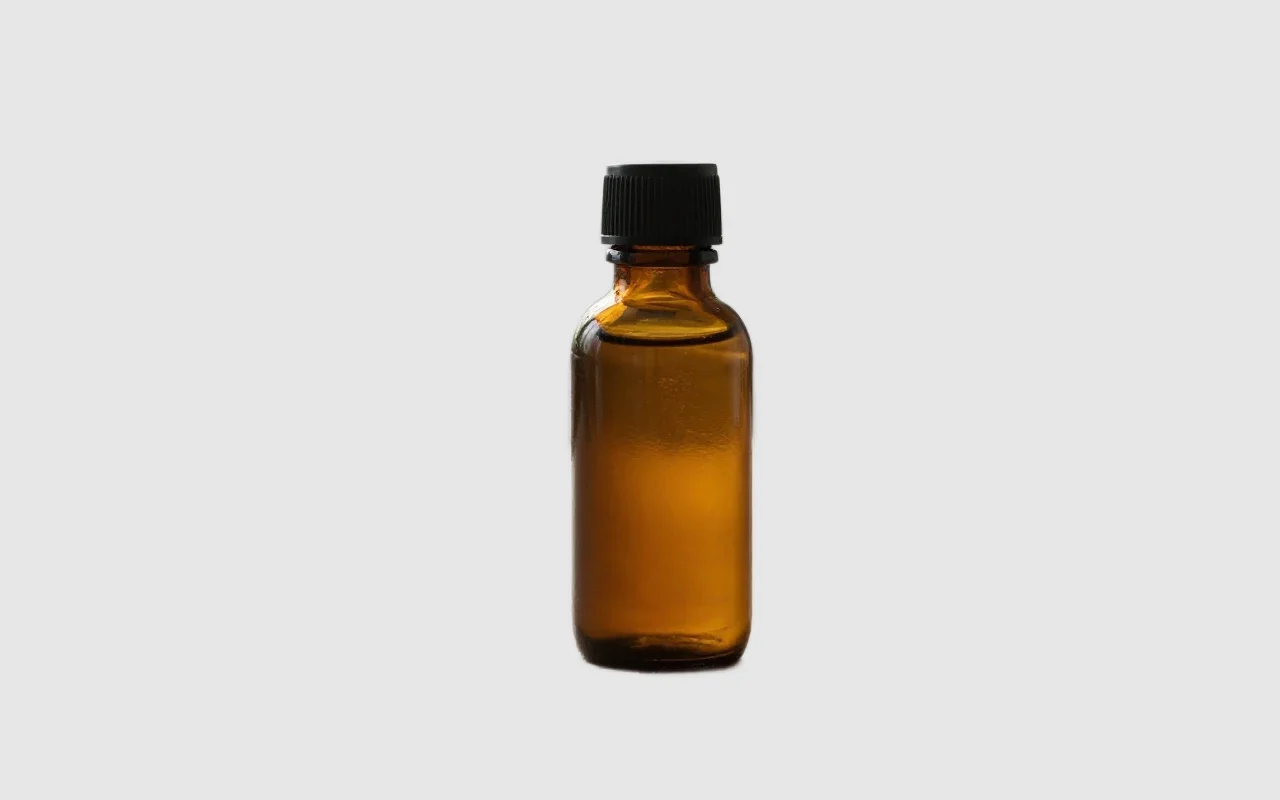
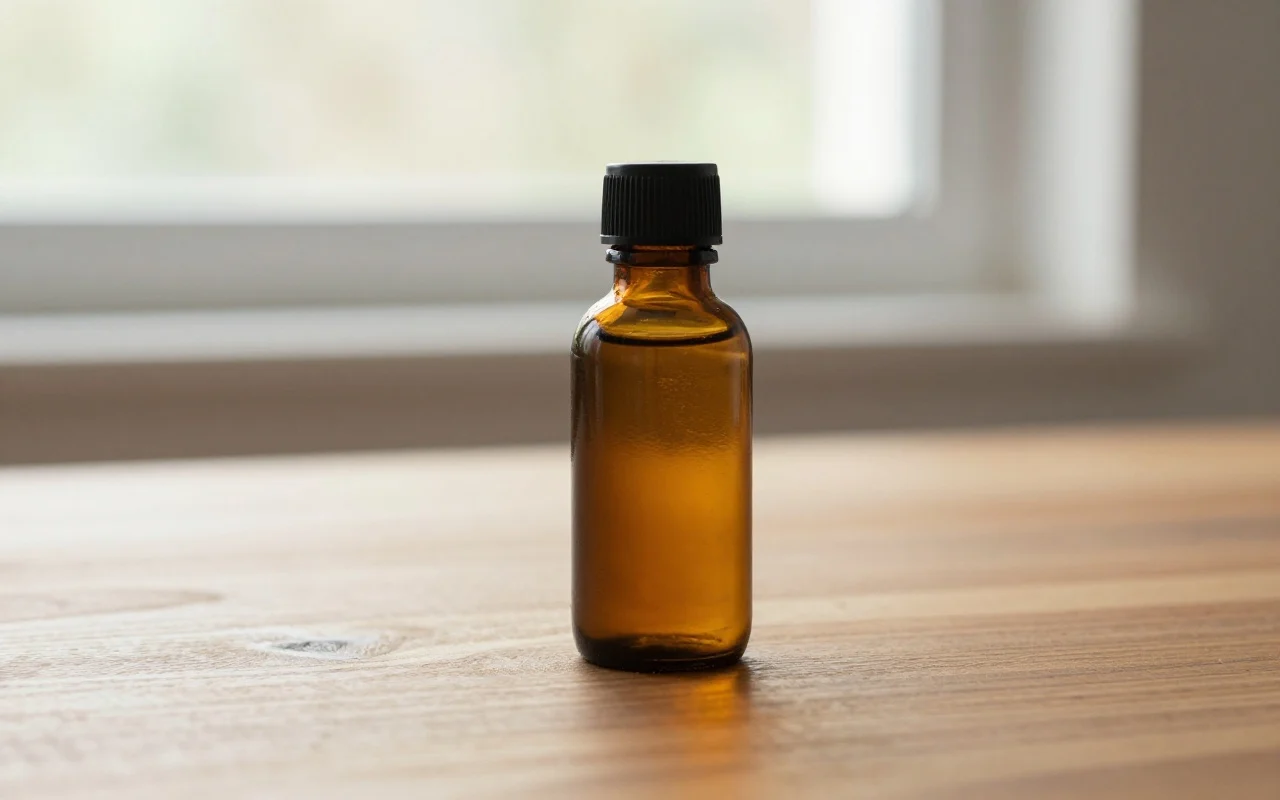
Clean listing photos
For independent shops and marketplace sellers: clean small blemishes, remove a distracting background, or make a square white or solid-color packshot.
Start with a clear product photo. Clean it, choose a packshot or scene, explore apparel and color variants, then review and download the images you need for your store or campaign.
Different images do different jobs. Keep a clear product view for the listing, and use scenes or creative treatments where context helps.
For independent shops and marketplace sellers: clean small blemishes, remove a distracting background, or make a square white or solid-color packshot.
For store banners, social posts and seasonal campaigns: choose a background, supply a scene, change light or explore a creative photograph.
For clothing and product variations: try ghost mannequin, flat lay, AI fashion model or garment ironing, and preview colors on a specified part before checking the real item.
Use only the steps your photo needs. From a chosen result, use Next tool to carry that image into the next step, then review the new output against your original.
Keep an original copy. Retouch dust first if needed. Remove the background for a cutout; add Soft, Hard or Floating shadows only to a shadow-free cutout with enough margin.
Choose the standard-photo option in Product Photography for a clean square. Use Background Generator for a generated setting, Staging for your own scene, or Relighting and Creative Photography for a new look.
Use ghost mannequin, flat lay, AI fashion model or garment ironing for apparel. Preview up to six colors on one specified product region. Inspect seams, labels, material and the actual color before keeping a result.
Choose Product image set within Product Photography to generate selected full images directly. Each style is billed separately, without a collage preview. Compare each result with the original, mark checked images and export.
Reviewed retouch, recolor and shadow examples from the existing tool pages. These are separate edits, not one product passed through an entire pipeline.
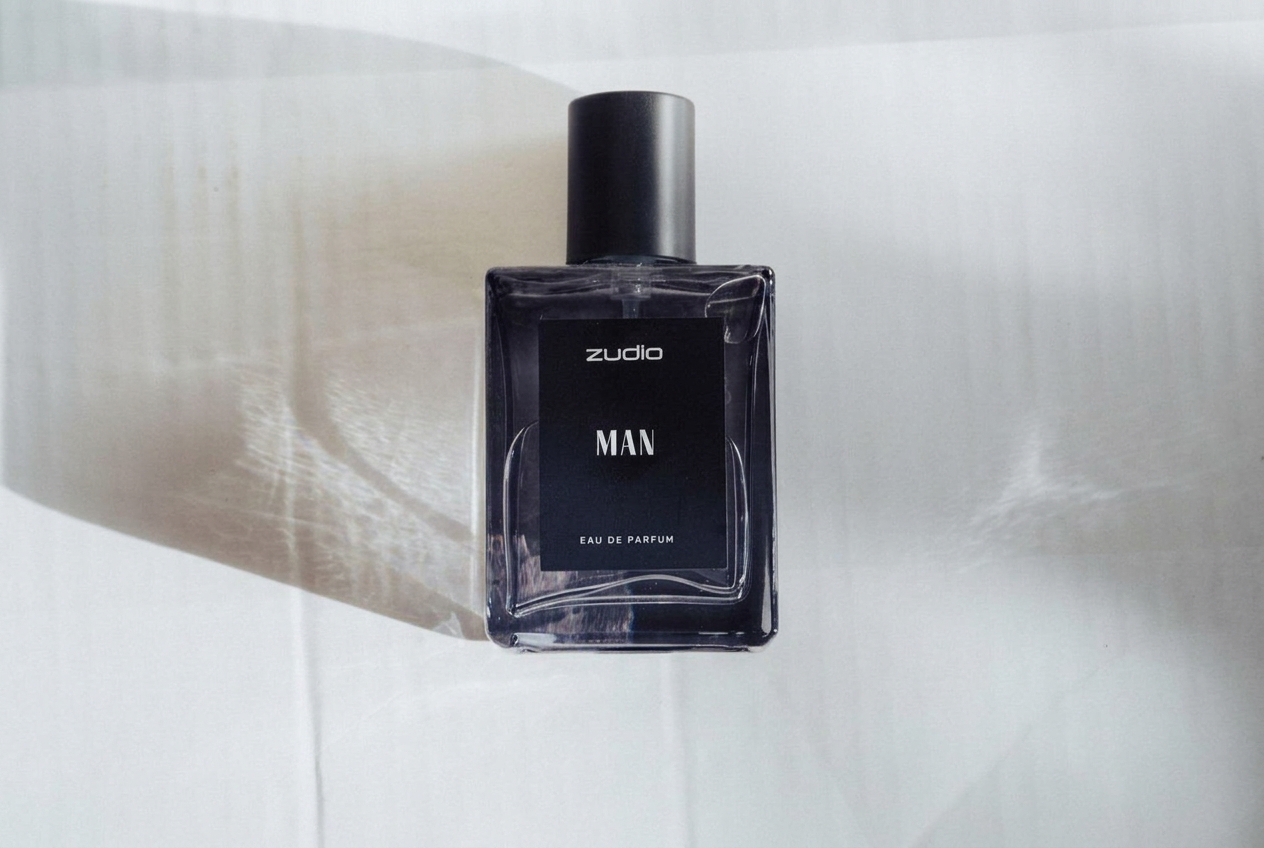
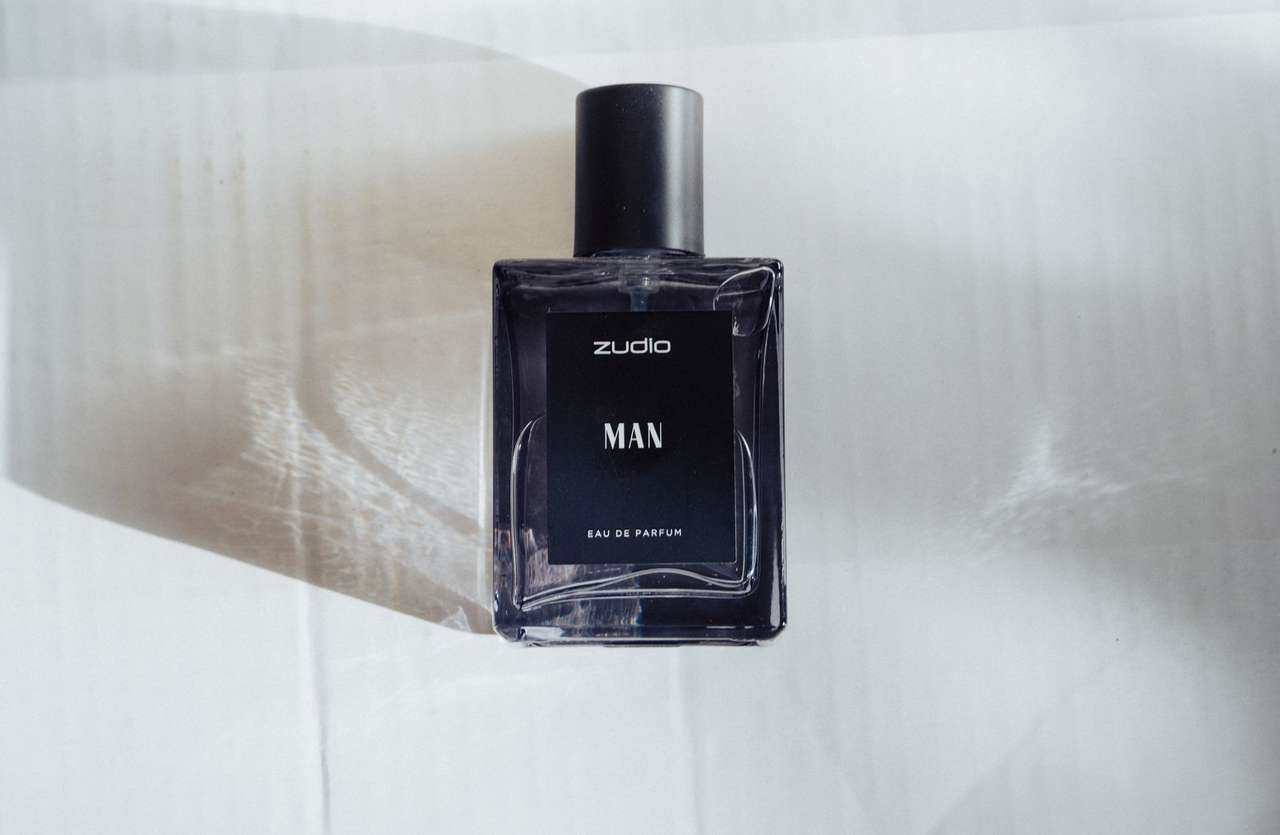
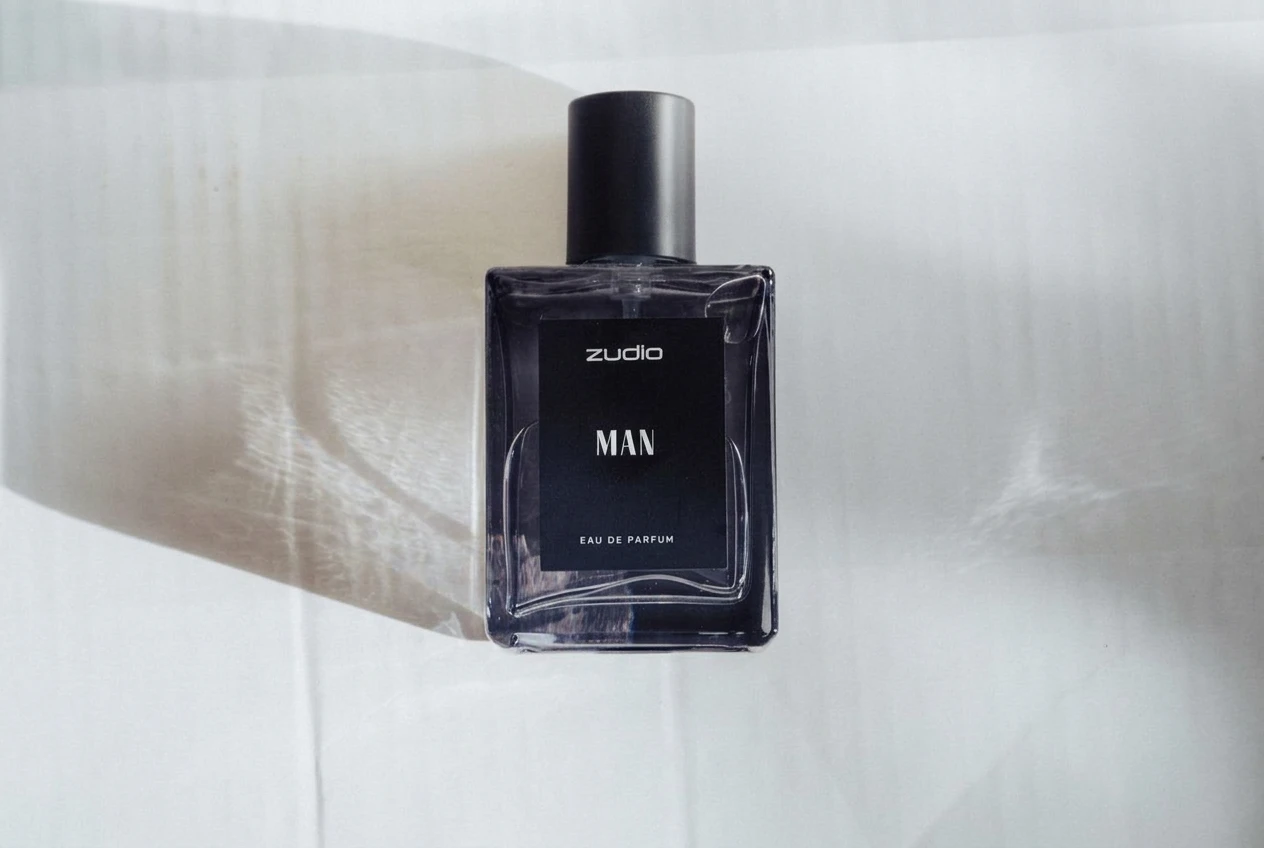
Parfüm
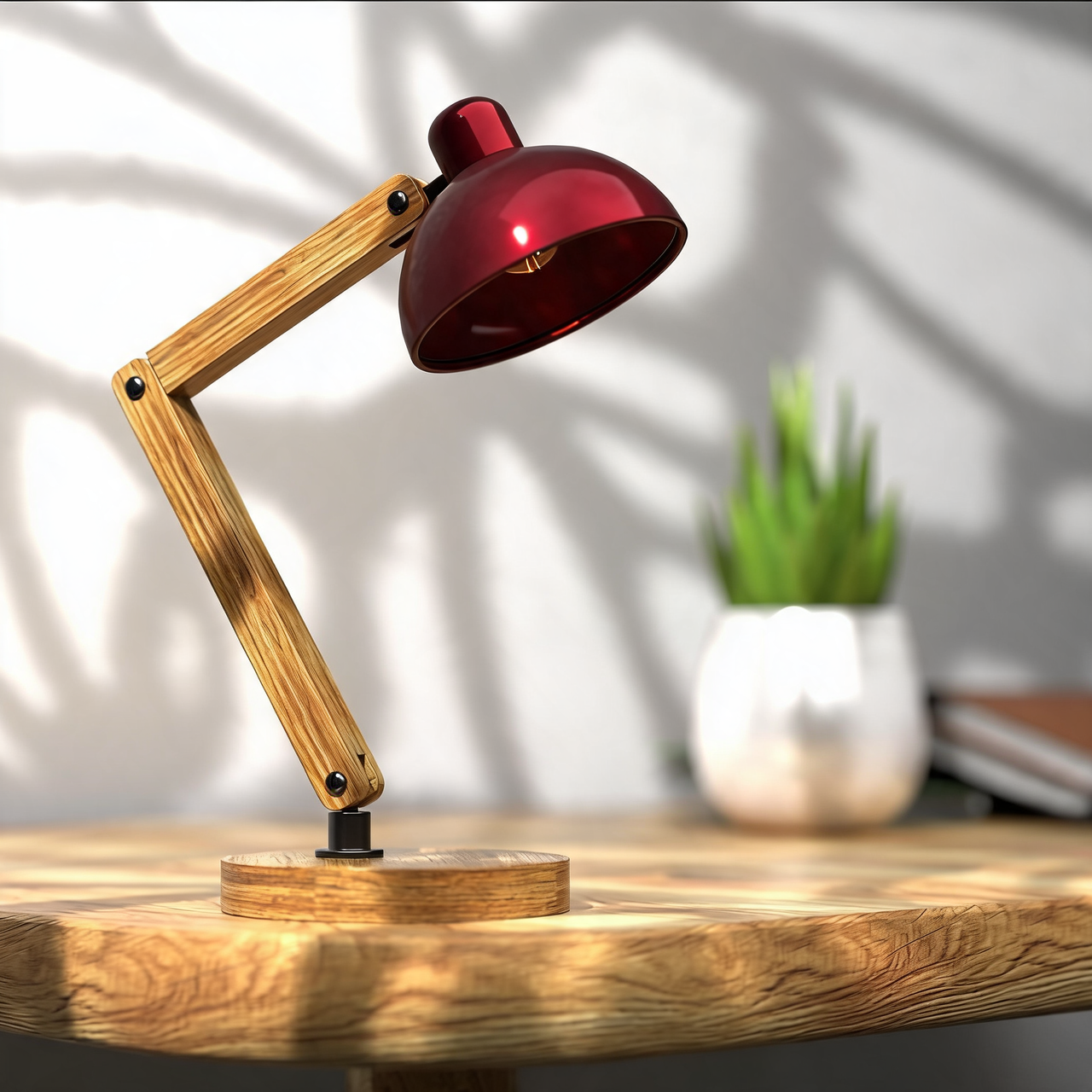
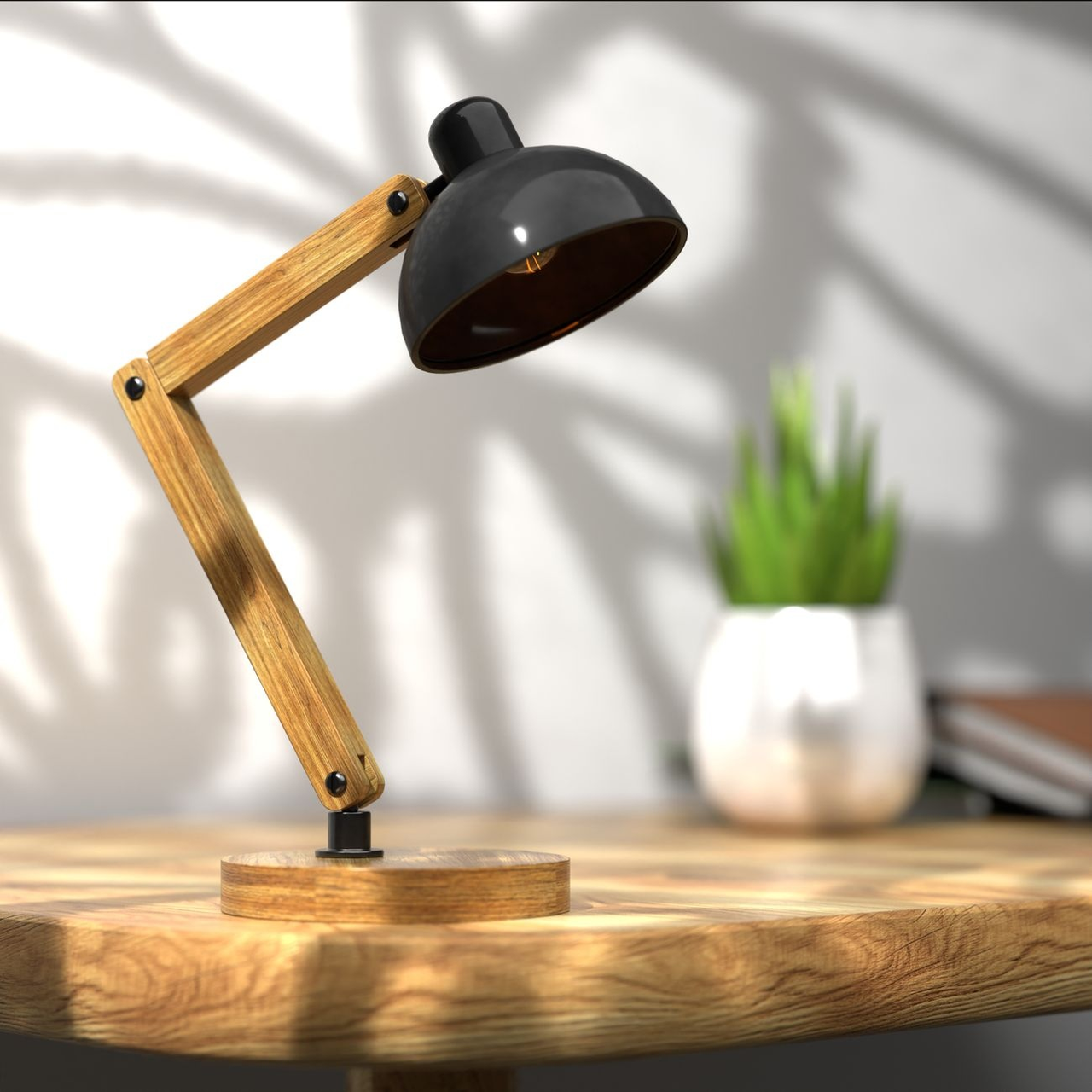
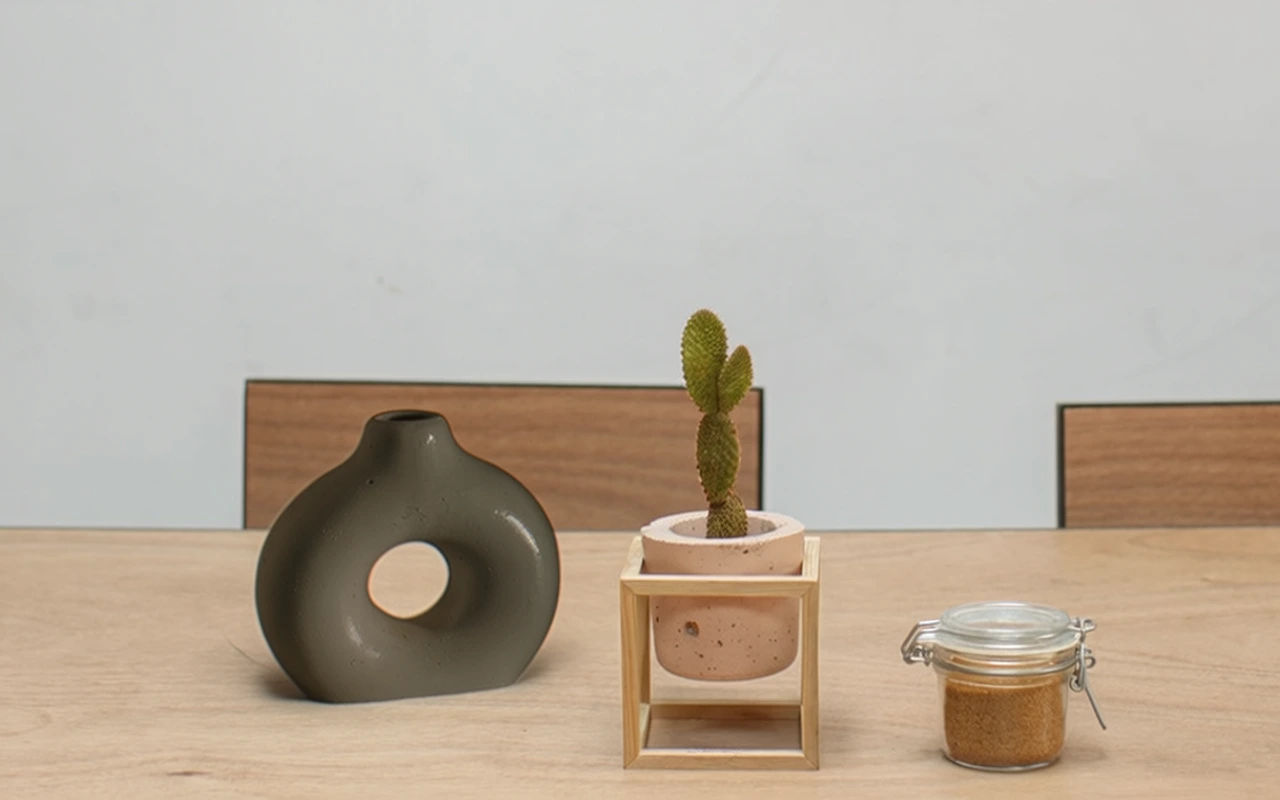
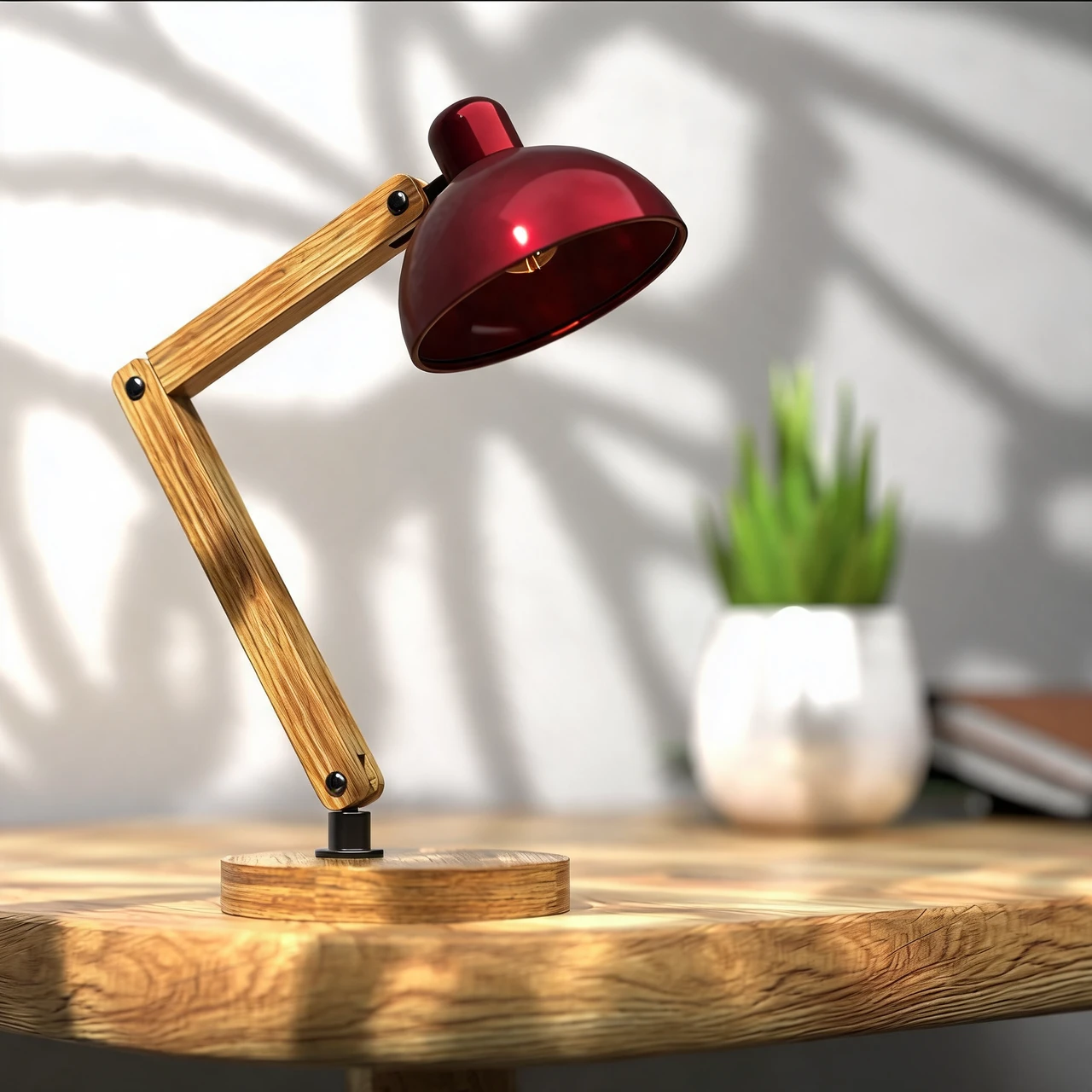
Masa lambası

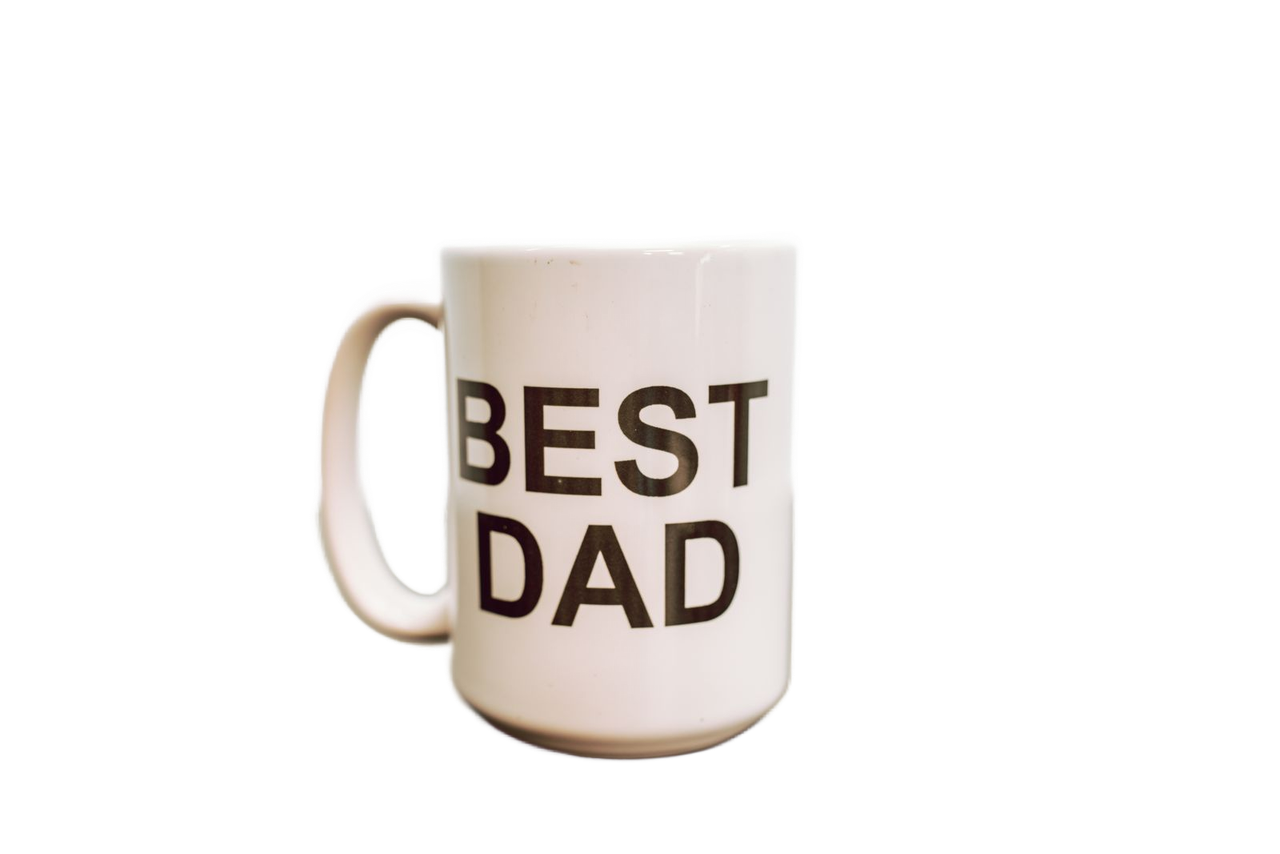
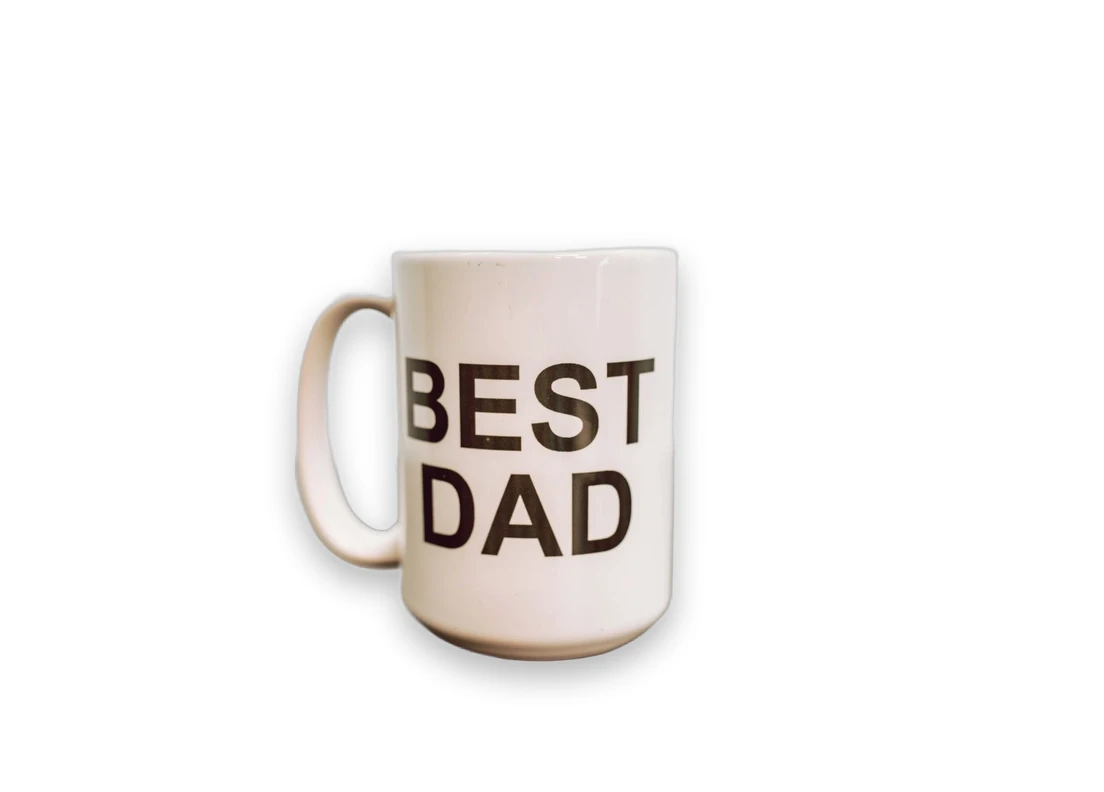
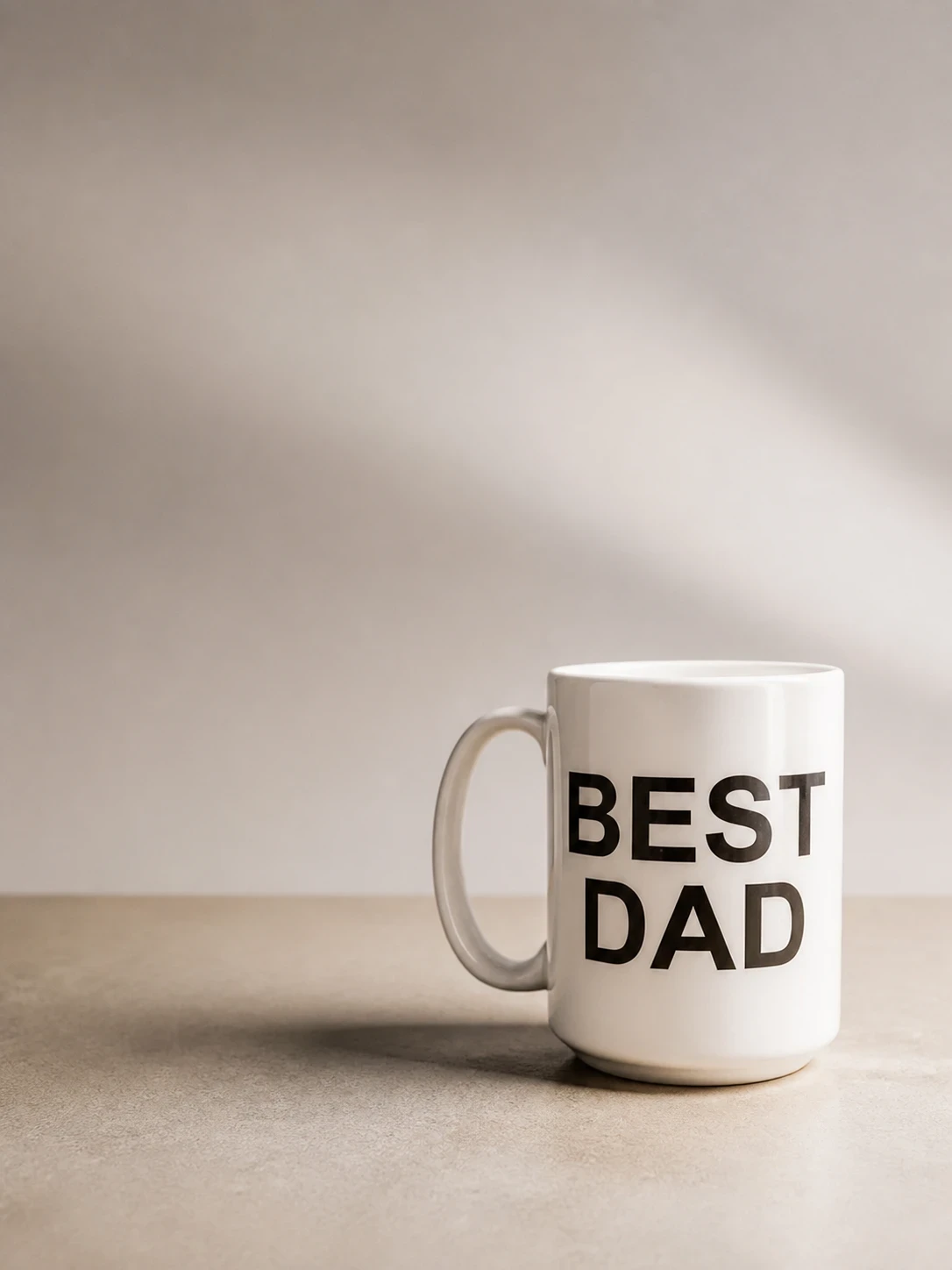
Seramik kupa
Eleven tools grouped by job, with each catalog entry shown once. Product Photography also includes a Product image set operation.
Make a standard product photo, remove a background, clean small blemishes, or add Soft, Hard or Floating shadows to a prepared cutout.
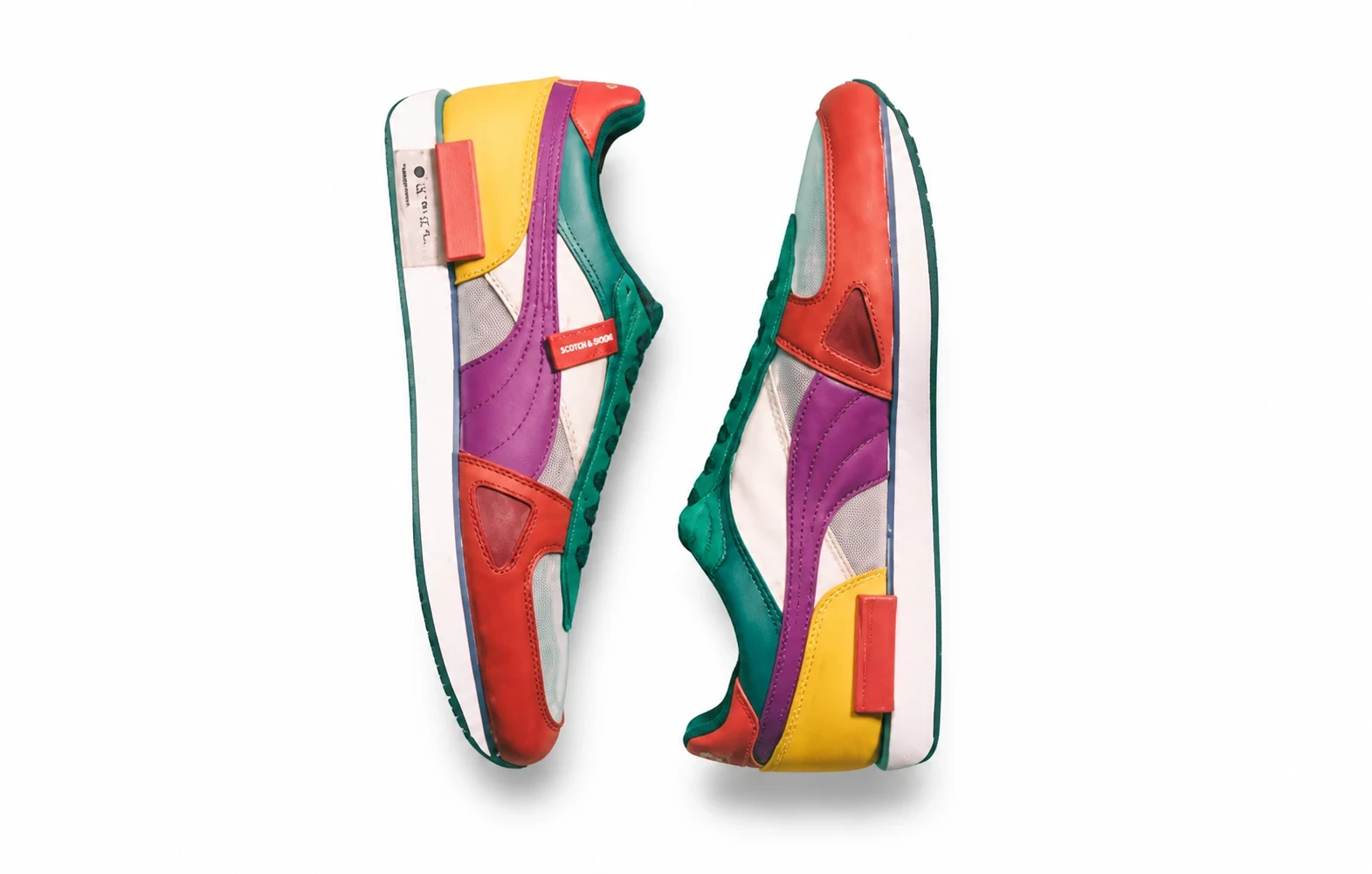
AI Garment Ironing
Choose between generating a setting, placing a product in a supplied scene, adjusting light and exploring an automatic creative composition.

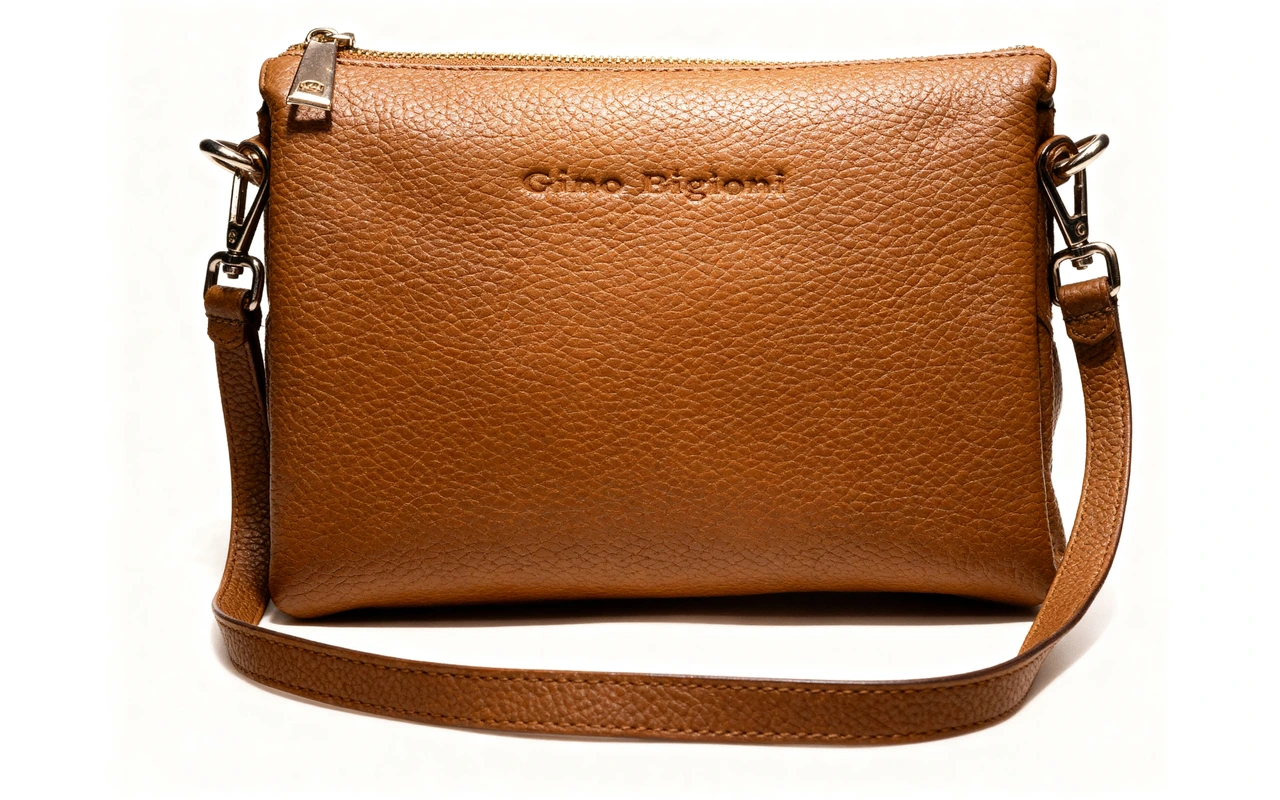
Prepare garment presentations or explore colors. New views and reconstructed garment interiors still need comparison with real product references.
AI Ghost Mannequin
AI Flat Lay
AI Fashion Model
Use AI results as editable product visuals. Keep the original beside them and choose only images that describe the actual item accurately.
Compare logos, printed text, small components, edges and surface texture. Prompt instructions to preserve them are not a guarantee.
Check color previews and relit materials against real stock. A chosen HEX color is not a calibrated product-color measurement.
Match framing, crop, background and apparent scale across images. Reusing a preset or reference does not lock the same generated scene for every SKU.
Check dimensions, sharpness, allowed backgrounds and any overlays. Download presets prepare files; they do not approve a listing or upload it to your store.
Choose a starting point and understand what happens between generation, review and export.
Use Product Photography for a single image or select Product image set to generate several full images. Keep the original photo for your final review.