
Portrait workflow: career headshots and ID photos
A practical Favore Portrait workflow: choose a career headshot or an ID-style photo, prepare the background, review identity, and check submission requirements.
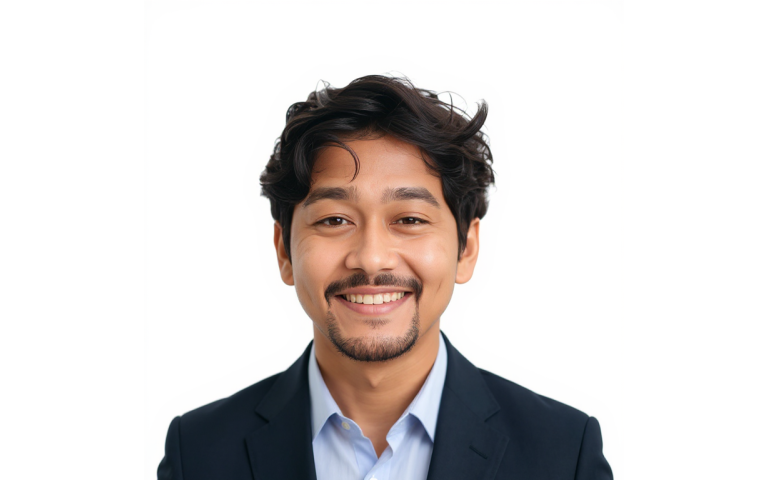
Choose the destination before editing
A career headshot helps someone recognize you on a team page, professional profile, or speaker biography. An ID photo must meet the receiving organization's requirements. A polished profile picture is not automatically suitable for an official document.
This guide covers the finishing stage of Favore's Portrait photography workflow. Choose one of two paths before changing the image:
| Destination | Starting point | What to review |
|---|---|---|
| Career or marketing headshot | AI Headshot Generator | Recognizable features, appropriate clothing, a convincing background, and the final profile crop |
| ID-style photo | Read the receiving organization's current requirements, then consider AI ID Photo only if processing is allowed | Permitted edits, capture requirements, expression, background, head position, dimensions, and file format |
If your destination prohibits AI-generated or digitally altered photos, use a new compliant photograph. A size preset, plain background, or disclosure does not override that restriction. Favore does not certify acceptance.
Step 1 — Start from a clear, authorized portrait
Use your own photograph or one you have permission to edit. Pick a recent image with a visible face, even light, and enough space around the head and shoulders. Avoid screenshots, beauty-filtered copies, heavy blur, and hair cut off by the frame. Keep the original in a separate file.
If the source is damaged, follow the restore and polish guide for a personal portrait first. For an official ID submission, take a fresh photo when the original cannot meet the capture requirements; reconstructed facial detail is not a substitute.
Step 2 — Prepare the background for a career portrait
Use Background Remover when you need to isolate the person from a distracting scene. Inspect fine hair, ears, glasses, and shoulder edges before using the cutout.
Choose AI Portrait Background Changer when the career portrait needs a different setting. Keep the setting quieter than the face, and check that light direction and subject edges still make sense. Choose the tool that addresses the problem; you do not need to run both.
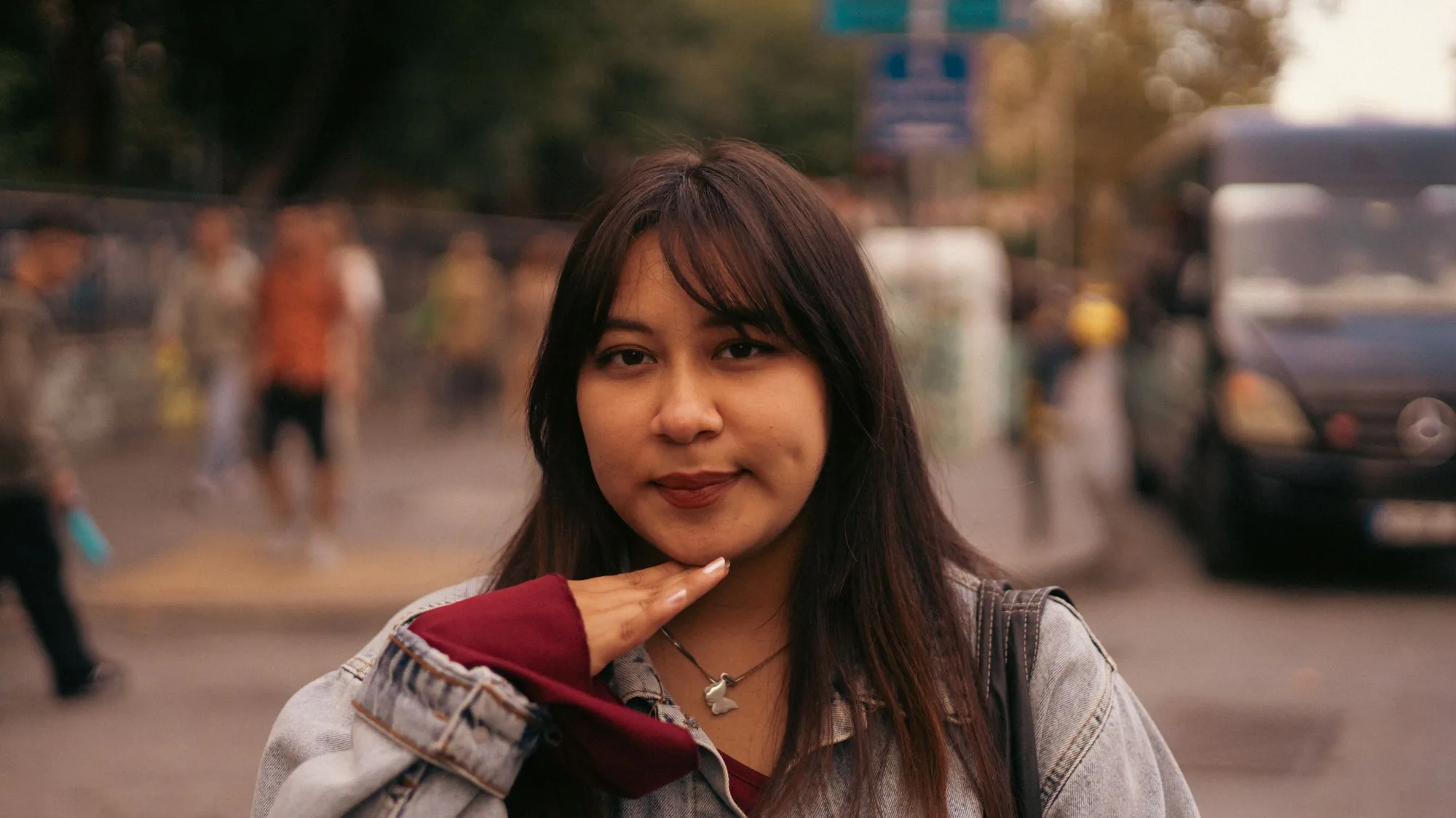 Before
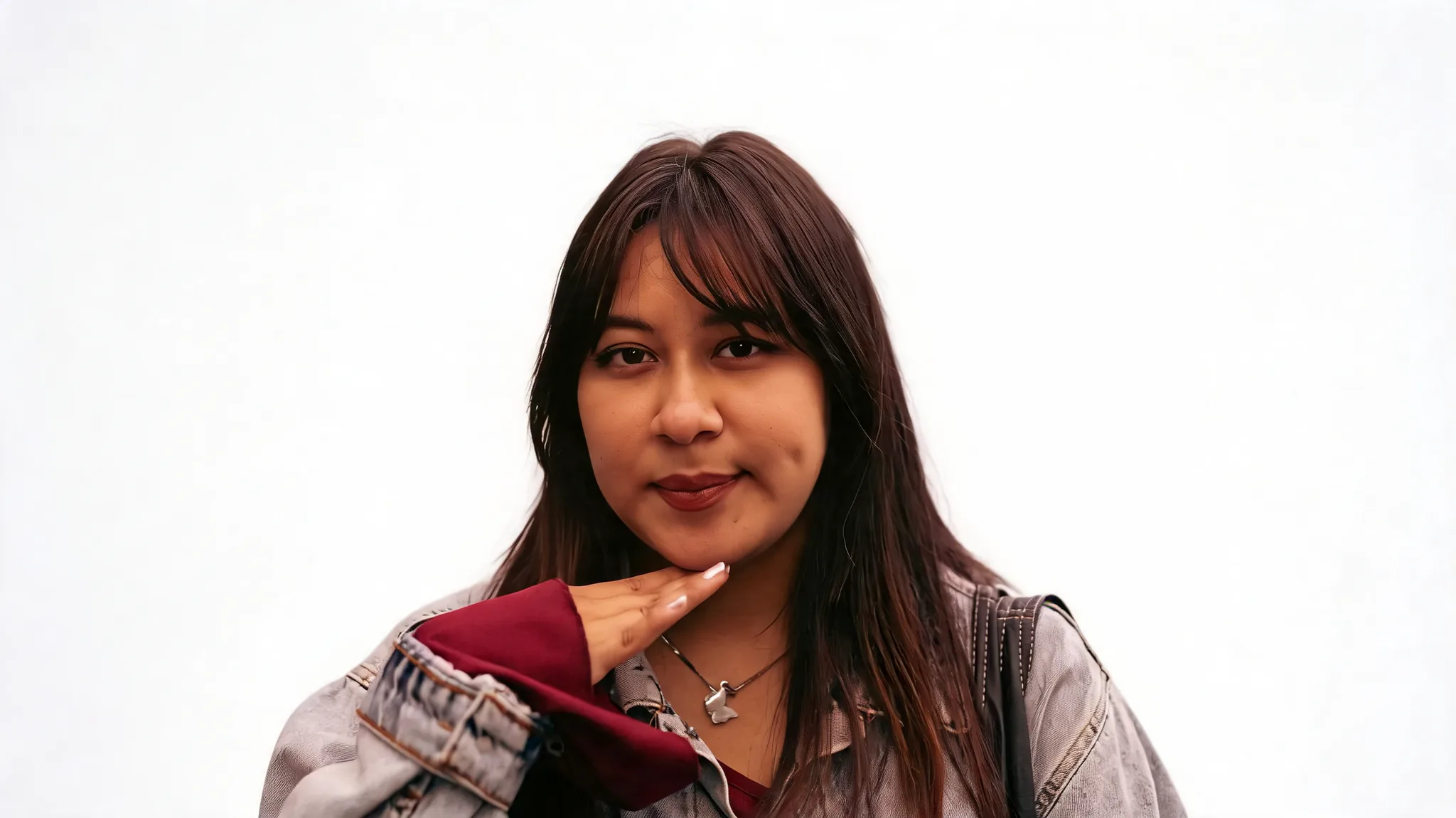 After
AfterStep 3 — Finish the career headshot
Open AI Headshot Generator with the clearest suitable source. Choose a professional direction that fits the destination rather than repeatedly processing every intermediate result.
Compare the output with the original at full size. Check eye shape, nose, jaw, skin tone, hairline, and recognizable marks. Review clothing seams and the background too. If the face no longer looks like you, return to the source and try again instead of smoothing the result further.
 Before
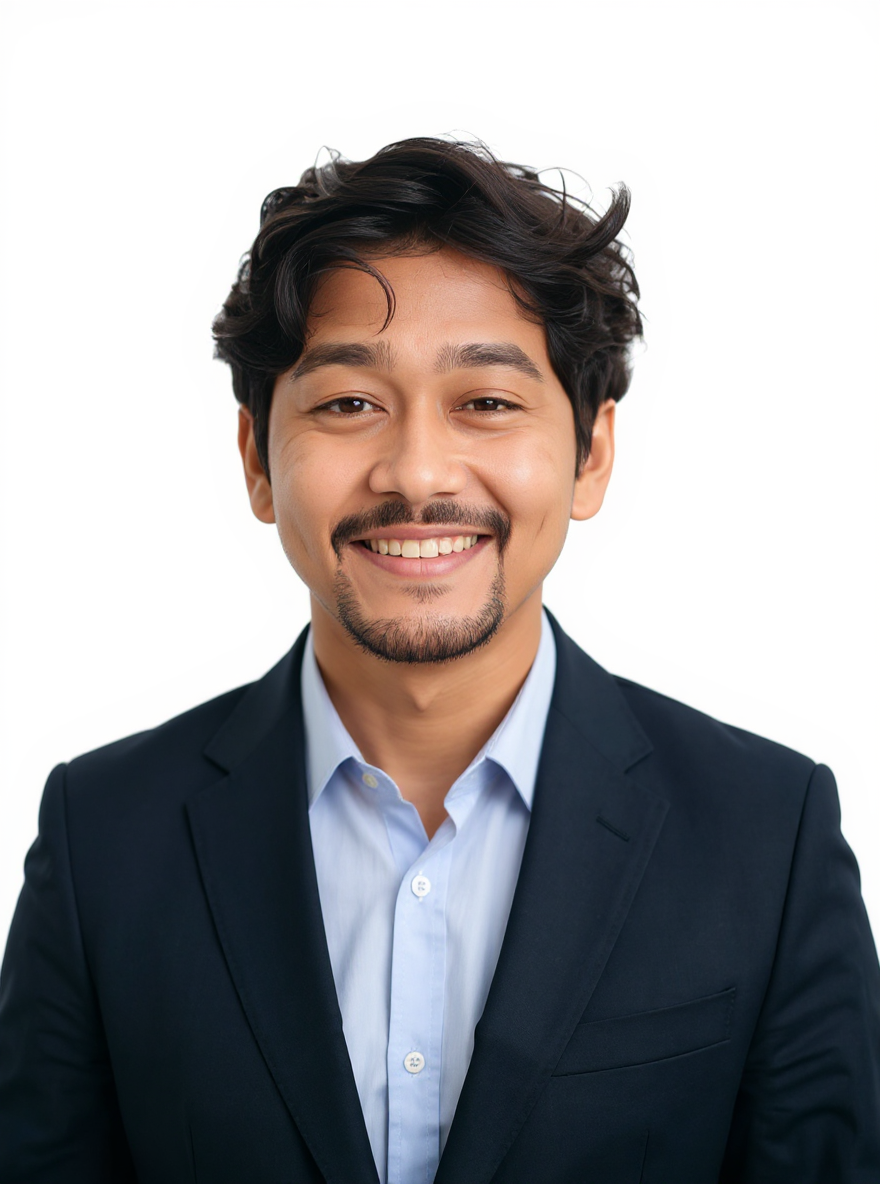 After
AfterTest the final crop in the actual profile shape. Leave space around the hair and shoulders so a circular avatar does not cut into the face.
The ID path — Check permission before processing
Keep the ID branch separate from the career workflow. Do not carry a generated headshot, makeup edit, teeth whitening, hairstyle change, or style-preview grid into an official submission.
- Read the current requirements for the exact document and receiving organization, including whether digital processing is permitted.
- Start with a front-facing capture that already meets the required expression, pose, and lighting conditions.
- If permitted, use AI ID Photo for an ID-style crop and plain-background direction. Treat its size options as guides, and verify the downloaded file's actual dimensions and format.
- Compare the face against the original and check every submission requirement. If processing is prohibited or the result changes facial details, retake the photograph.
The tool avoids beauty edits by default, but it still uses AI processing. That distinction matters even when the output looks natural.
Optional — Compare photographic looks on one contact sheet
For a personal or career portrait, AI Portrait Style Preview compares selected lighting and color treatments in one contact-sheet image. It is intended to keep identity, pose, clothing, hairstyle, makeup, and background content consistent; inspect every tile because generated details can vary.
Use the grid to discuss a direction before preparing the final portrait. The download is one image containing the selected looks, with no text labels; it is not a set of separate full-resolution portraits or an ID photo output.
Before publishing or submitting
Keep the source and approved result together. Ask the person pictured to review their likeness, and disclose AI generation or digital enhancement where the publishing context calls for it. For ID use, follow the receiving organization's rules; disclosure alone cannot make a prohibited edit acceptable.
संबंधित पोस्ट
 Guides
 Guides
 Guides