
Portrait workflow: restore first, polish gently
A practical Favore Portrait workflow: repair damaged photos, recover facial detail, optionally colorize, then choose gentle skin, makeup, teeth, or hair edits.
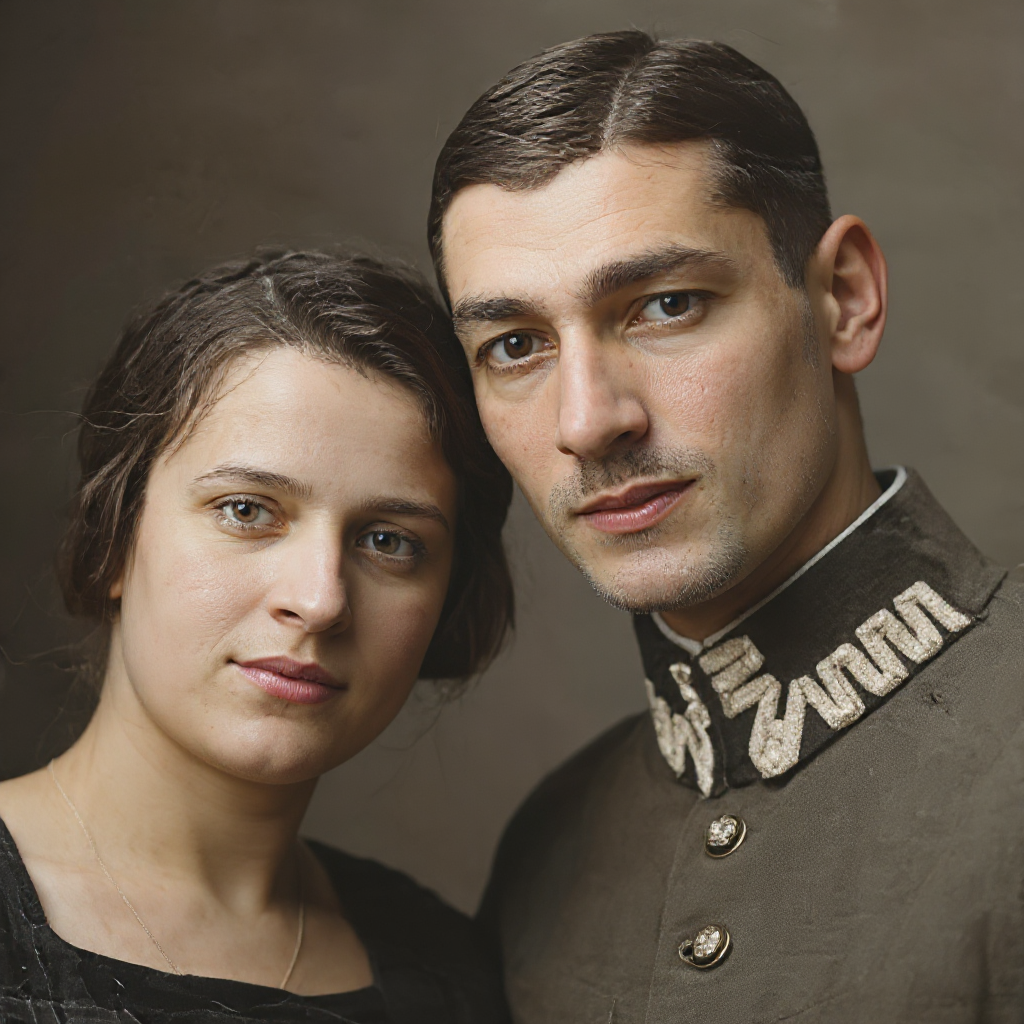
Repair the source before changing the look
A cracked family print and a clear portrait with uneven makeup need different starting points. In Favore's Portrait photography workflow, restoration repairs the source; polish changes its presentation. Use only the steps the photograph needs.
Keep an untouched scan or original file. Work from a copy of your own photo, or a photo you have permission to edit, and save an approved version after each useful step. These tools aim to retain recognizable identity, but AI can reconstruct details incorrectly.
Step 1 — Choose the right repair
| Source problem | Tool to start with | Review before continuing |
|---|---|---|
| Cracks, scratches, fading, or broader damage | Photo Restoration | Faces, hands, clothing, and the boundary between repaired damage and real detail |
| A soft or low-detail face | Face Restorer | Eyes, mouth, hairline, and recognizable facial features |
| A black-and-white portrait that you want in color | AI Photo Colorizer | Plausible skin and clothing colors, with the monochrome source preserved |
For a damaged print, begin with Photo Restoration. If the repaired image still has a soft face, consider Face Restorer next. A clear modern portrait can skip restoration entirely.
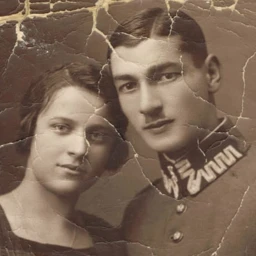 BeforeAfter
Step 2 — Check facial detail, then decide about color
View the restoration beside the original at the same display size. If eyes, teeth, or a familiar expression have changed, reject that version. More apparent sharpness is not useful when it makes the person less recognizable.
Face Restorer can be a focused next step when facial detail remains soft. Inspect each face in a group photo rather than judging only the sharpest one. Stop when the result is clear enough for its intended use; repeated restoration can drift away from the source.
 Before
 After
AfterColor is optional. Use AI Photo Colorizer on the approved monochrome version if a color interpretation would be useful. AI-selected colors do not establish the original color of clothing, eyes, or surroundings. Keep the black-and-white version alongside it and label the colorized copy accordingly.
Step 3 — Pick a polish pass for the actual need
For an archival family photograph, the repaired version may be the finished result. Save cosmetic experiments as separate copies. For a contemporary personal portrait, choose one targeted edit and review it before adding another:
- Face Retoucher — soften distracting skin imperfections while checking that skin texture and facial structure remain recognizable.
- AI Makeup Polish — preview a soft everyday makeup treatment. Check lips, eyelids, and skin tone against the source.
- AI Teeth Whitening — gently brighten visible teeth. Keep the existing tooth shapes, spacing, lips, and smile; a closed mouth does not need this step.
- AI Hairstyle Changer — explore a hairstyle on a separate preview copy. Check the hairline, ears, and face outline, and retain the original hairstyle in the restoration master.
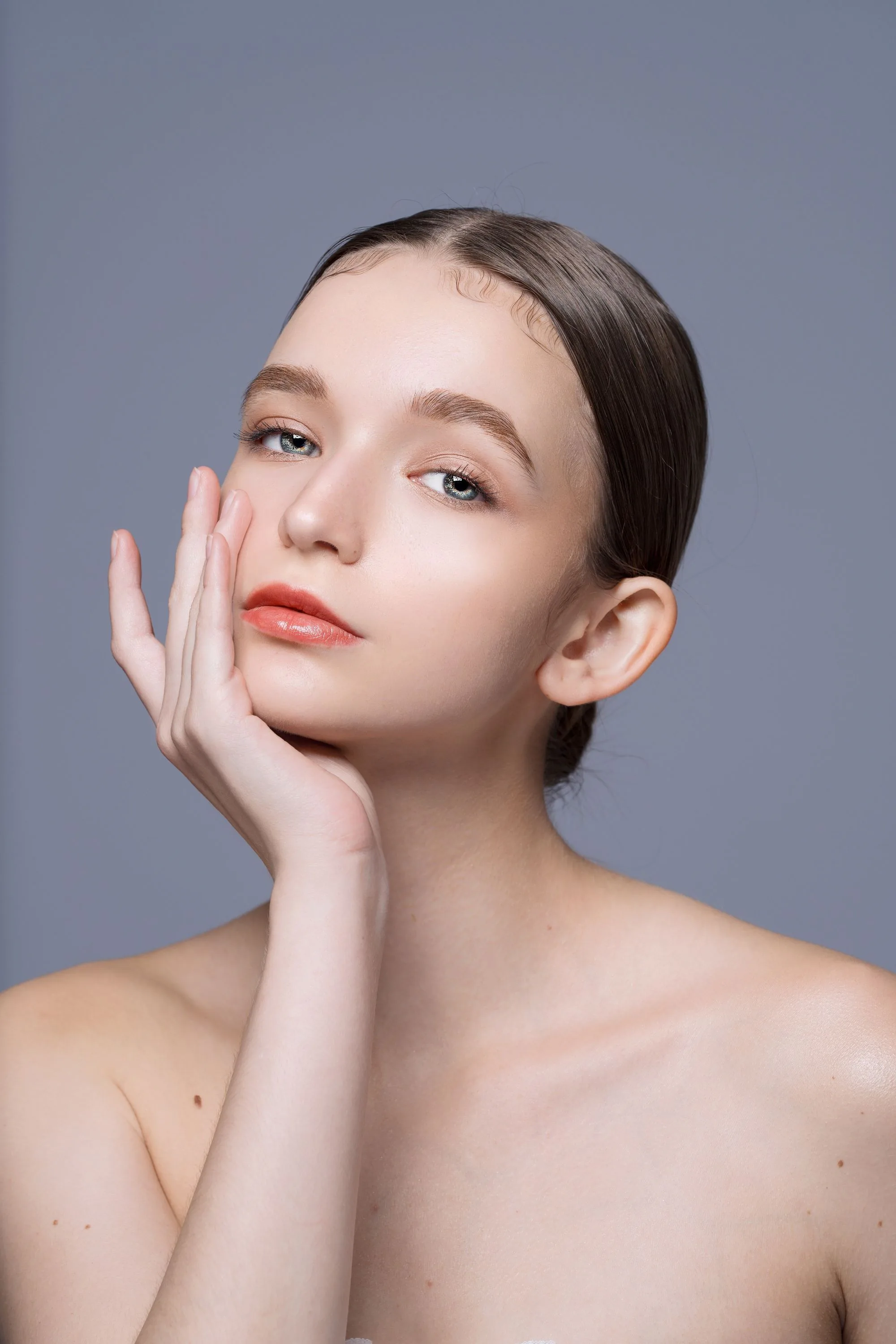 Before
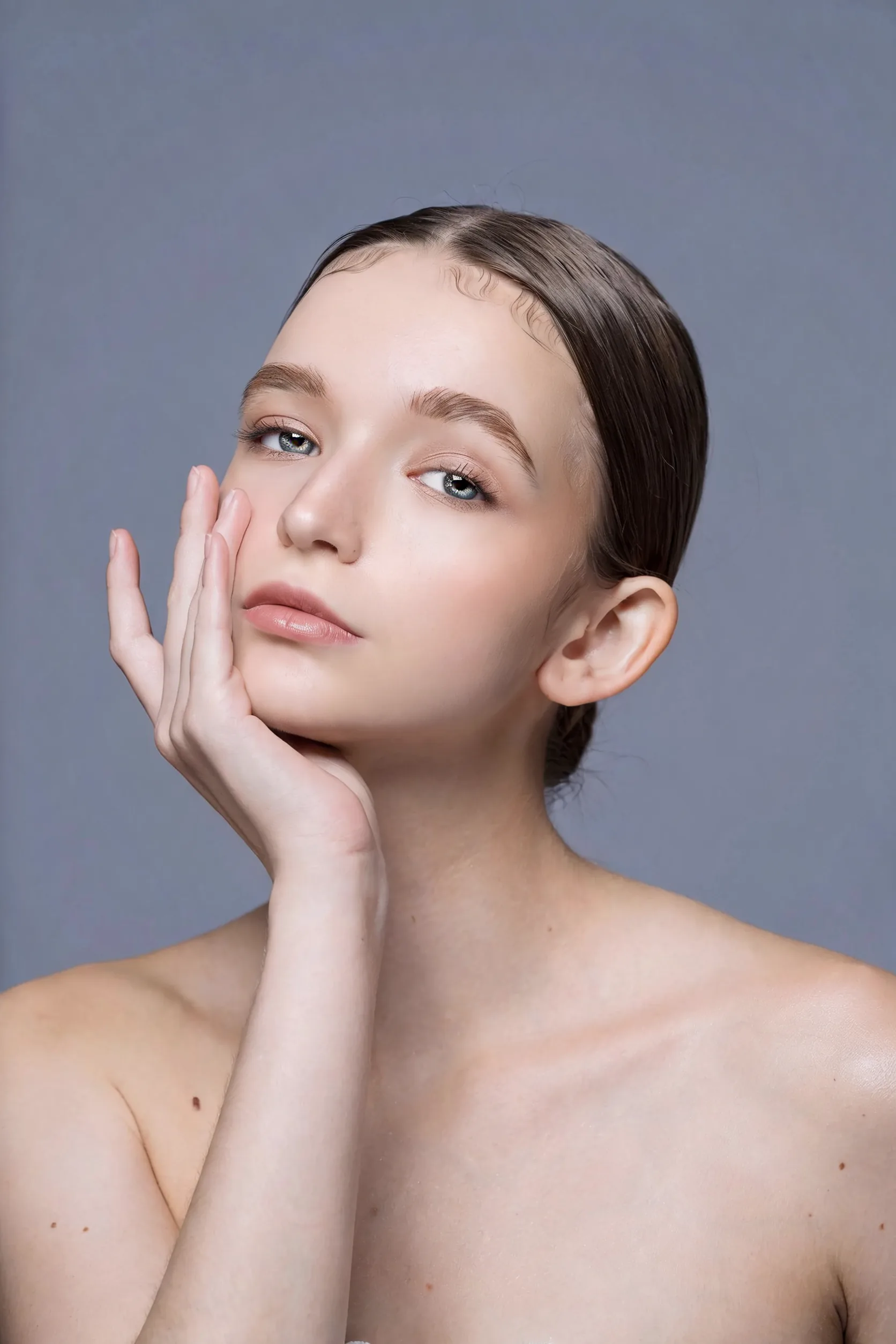 After
AfterWhen an edit changes the jaw, eye shape, age appearance, or a distinguishing feature, return to the last approved version. Do not stack another cosmetic pass to hide a poor restoration.
Optional — Upscale the approved final image
Use Image Upscaler after restoration and any chosen polish if the final output needs more pixels. Check the requested output size before running it, then inspect hair, eyelashes, teeth, and repaired cracks at full size. Extra pixels cannot prove that a reconstructed detail is historically accurate.
For a career profile, continue with the headshot and ID photo guide. Keep official ID work separate: a restored or beautified portrait is not automatically eligible for submission.
Keep a clear record of the edits
Save the original, the approved restoration, and any colorized or cosmetic variants with distinct filenames. Before sharing, ask the person pictured or an appropriate family reviewer whether the likeness feels right. Describe restored, colorized, or digitally enhanced versions honestly so viewers can distinguish the source from later interpretation.
İlgili gönderiler
 Guides
 Guides
 Guides